How to scan a qr code android: The Easy, Fast Guide

Ever feel like QR codes are the secret handshake of the modern world? The good news is your Android phone already knows the move, letting you scan a QR code on Android with tools that are probably already on your device. This guide is your practical roadmap to instant, hassle-free scanning.
Your Android Phone's Built-In QR Scanner
From pulling up a restaurant menu in Amsterdam to instantly connecting to Wi-Fi at a local café, QR codes are absolutely everywhere. Instead of fumbling around with third-party apps, your Android device most likely has a powerful scanner built right into its camera.
This native feature makes grabbing digital information incredibly fast and straightforward. Just think of it as a bridge between the physical and digital worlds, activated with a simple point-and-shoot.
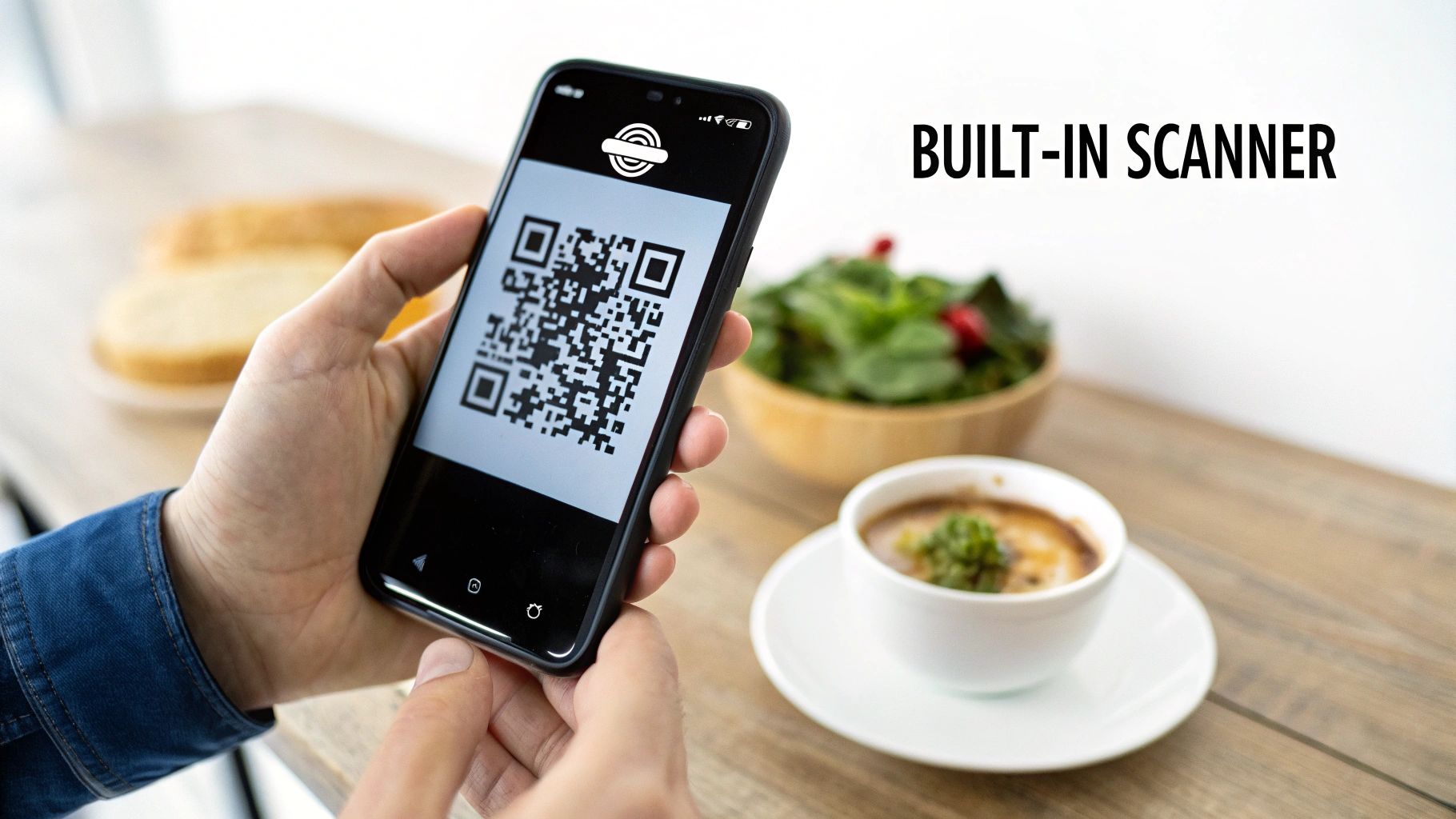
This built-in capability is a huge reason for the explosion in QR code usage. Imagine strolling through Rotterdam and paying for a bike rental with a quick scan. In the Netherlands, systems like Payconiq by Bancontact processed over 471 million smartphone QR transactions in 2023 alone—a stunning 28% increase. Android users are a massive part of this trend, as the native camera scanner makes the whole process frictionless.
We'll kick things off with the method you'll probably use 99% of the time—your camera app—and then explore Google Lens for more advanced tasks, like pulling a code from a photo you've already taken. For a broader look, you can also check out a comprehensive guide on how to scan a QR code that covers various devices.
Quick Android QR Scanning Methods at a Glance
Here's a quick look at the best ways to scan QR codes on your Android device, so you can choose the right tool for the job.
| Scanning Method | Best For | How to Access | Key Benefit |
|---|---|---|---|
| Native Camera App | Everyday, quick scans of physical QR codes. | Open the standard camera app and point it at the code. | Fastest and most direct method; no extra apps needed. |
| Google Lens | Scanning codes from existing photos or identifying objects. | Via the Google app, Photos app, or its own icon. | Highly versatile; can translate text and identify products. |
| Quick Settings Tile | Instant access when your camera app is closed. | Swipe down from the top of the screen to access Quick Settings. | One-tap access to the scanner without opening any app first. |
| Third-Party Apps | When you need advanced features like scan history or batch scanning. | Download from the Google Play Store. | Specialised features not found in native scanners. |
Each method has its place, but for most day-to-day situations, just opening your phone's camera is all you'll ever need to do.
Using Your Camera App for Instant Scans
For most modern Android phones, the simplest solution is often right in your pocket. Forget about digging through the Play Store for a separate app; your phone's built-in camera is almost certainly the only tool you need to scan a QR code on Android. The whole process is designed to be seamless and nearly instant.
You just need to open your default camera app and point it steadily at the code. After a moment, a small notification should pop up on your screen, showing you the link or action hidden inside the code. Tapping this notification takes you right where you need to go—whether that's a website, a Wi-Fi login, or a contact card.
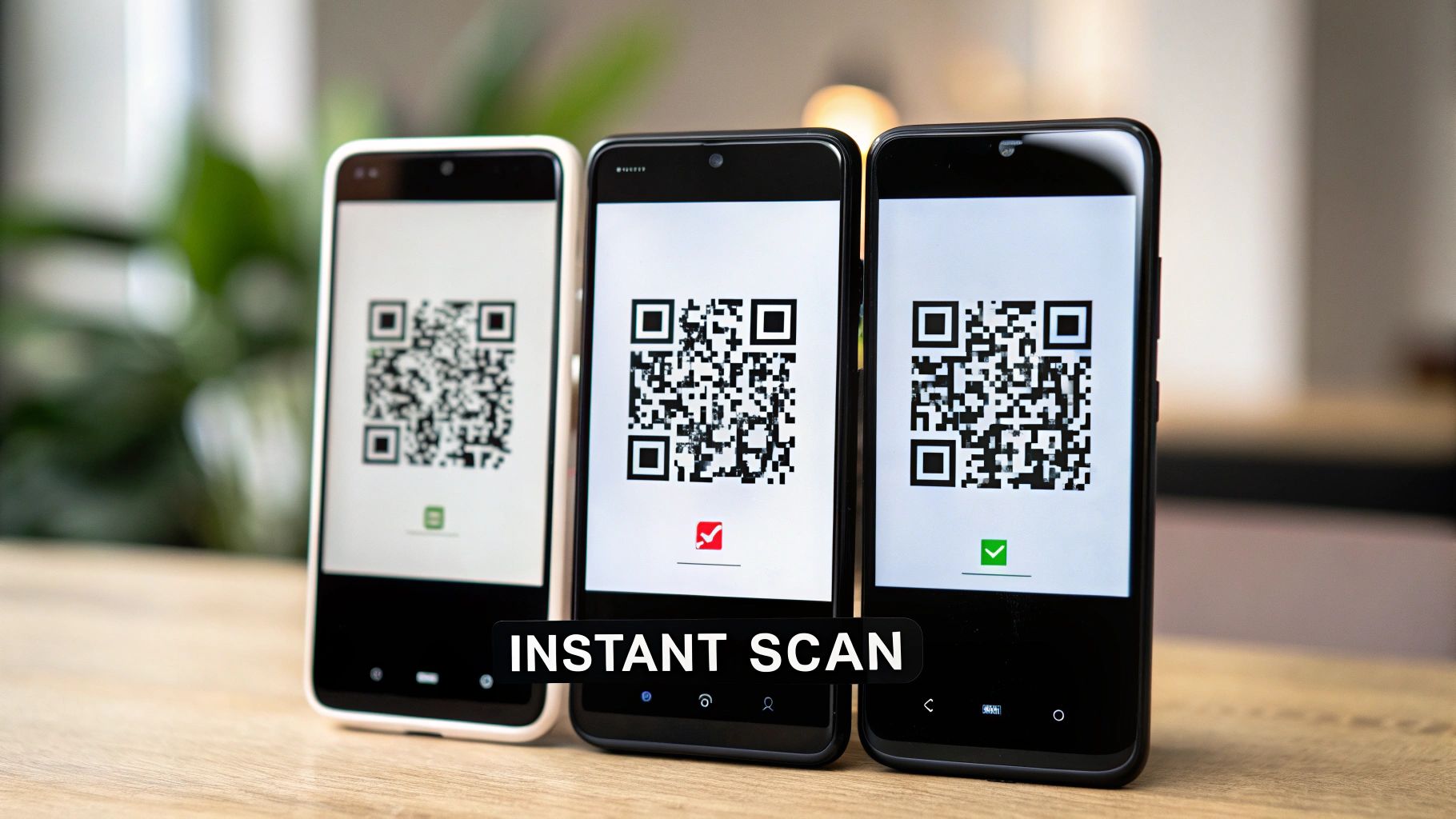
This native scanning capability is a game-changer. It removes the friction of having to download and open a dedicated app, making QR codes incredibly accessible for day-to-day use.
Enabling the Scan Feature
So, what happens if you point your camera at a code and… nothing? Don't worry, it's a common issue and usually a quick, one-time fix. The feature is likely just turned off in your settings.
Here’s how to check:
- Pop open your Camera app.
- Tap the settings icon (it usually looks like a small gear or cog).
- Look for an option called "Scan QR codes," "Google Lens suggestions," or something similar.
- Just toggle the switch to the 'On' position.
Once you’ve done this, the setting should stick, making all your future scans immediate. The exact name or location might vary slightly depending on your phone's manufacturer—whether it’s a Samsung, Google Pixel, or OnePlus—but it’s almost always tucked away in the main camera settings menu.
Imagine you're at a new café in Utrecht. Instead of asking for the Wi-Fi password and painstakingly typing it in, you can simply scan a QR code on the counter. Your phone will instantly connect you to their network—a perfect example of this feature saving you time and hassle.
This native integration is precisely why QR codes have exploded in popularity for everything from joining networks to viewing menus or making payments. It’s a fast, secure, and incredibly convenient way to interact with the world around you.
Going Beyond Links with Google Lens
Sometimes, a QR code is packed with more than just a simple web link, and your phone's standard camera app might not be able to unlock its full potential. This is exactly where Google Lens shines, becoming one of your most valuable tools.
Lens is often already built right into your camera or Google Photos app. It’s not just a scanner; it’s an intelligent visual search engine. It transforms how you scan a QR code on Android by actually understanding the context of what it sees.
Think of it like this: your camera can read a sign, but Google Lens understands what the sign means. Say a friend sends you a screenshot of a QR code for a product they saw online. Instead of fussing with printing it or trying to scan your screen with another phone, you can just open the image in your gallery and let Google Lens do the work directly from the picture.
Accessing and Using Lens for Smarter Scans
Getting started with Google Lens is incredibly simple because it’s usually hiding in plain sight. You can often find a dedicated Lens icon right in your camera's main interface. If not there, check inside your Google Photos or Google Assistant apps.
When you open an image that has a QR code, Lens typically spots it instantly and offers up a few smart actions. This is where you really see its power.
- Contact Information: Scan a vCard QR code on a business card, and Lens won't just dump raw text on your screen. It’ll prompt you to create a new contact with the name, number, and email already filled in for you.
- Event Details: Point Lens at a QR code on a poster for a concert in Groningen. It will immediately offer to add the event to your calendar, complete with the right date, time, and location.
- Wi-Fi Networks: Scanning a network QR code gives you a simple, one-tap button to connect. No more squinting to type out a long, complicated password.
By interpreting the data inside the code, Google Lens cuts out all the manual steps that usually come after a scan. It doesn't just show you information; it helps you act on it instantly, making it a seriously efficient tool for everyday tasks.
This kind of intelligent function is built on sophisticated image recognition, a field closely tied to AI development. If you're curious about how these technologies are becoming more user-friendly, exploring guides on how to build an app with AI using no-code platforms can offer some fascinating insights.
Ultimately, using Google Lens is about tapping into a smarter way to interact with the world around you. It turns a simple scan into a powerful, multi-step action that’s finished in a single tap.
How to Fix Common QR Scanning Problems
It’s a classic scene: you’re at a restaurant trying to pull up the menu, but your phone just isn’t playing ball with the QR code. We’ve all been there. It’s frustrating, but don’t worry—the fix is usually surprisingly simple and takes just a moment. Most scanning problems come down to a handful of common issues you can sort out right on the spot.
Often, the problem has less to do with your phone and more to do with your surroundings. Dim lighting is a major culprit, making it tough for your camera to clearly see the code's details. The easiest fix? Just flick on your phone's torch. That little bit of extra light is usually all it takes.
Distance can also throw things off. Holding your phone too close or too far away will blur the code, making it impossible for the camera to focus. A good rule of thumb is to start about 30 centimetres away and slowly move in until the scanner locks on. And don't forget the obvious: a smudged camera lens. A quick wipe with a soft cloth can make a world of difference.
Check the Code Itself
Sometimes, you can try all you want, but the issue is actually with the QR code itself, not your phone. If a code is blurry, damaged from wear and tear, or just poorly printed, your camera simply won’t be able to read it.
Glare is another sneaky problem, especially if the code is printed on a glossy surface. Try tilting your phone at different angles to find a spot where there are no reflections. Dealing with different situations, like figuring out how to scan a QR code from a picture you've already saved, often requires a different approach, usually involving a tool like Google Lens.
If you're stuck, this quick flowchart can help you diagnose whether the issue is with the code or your phone.
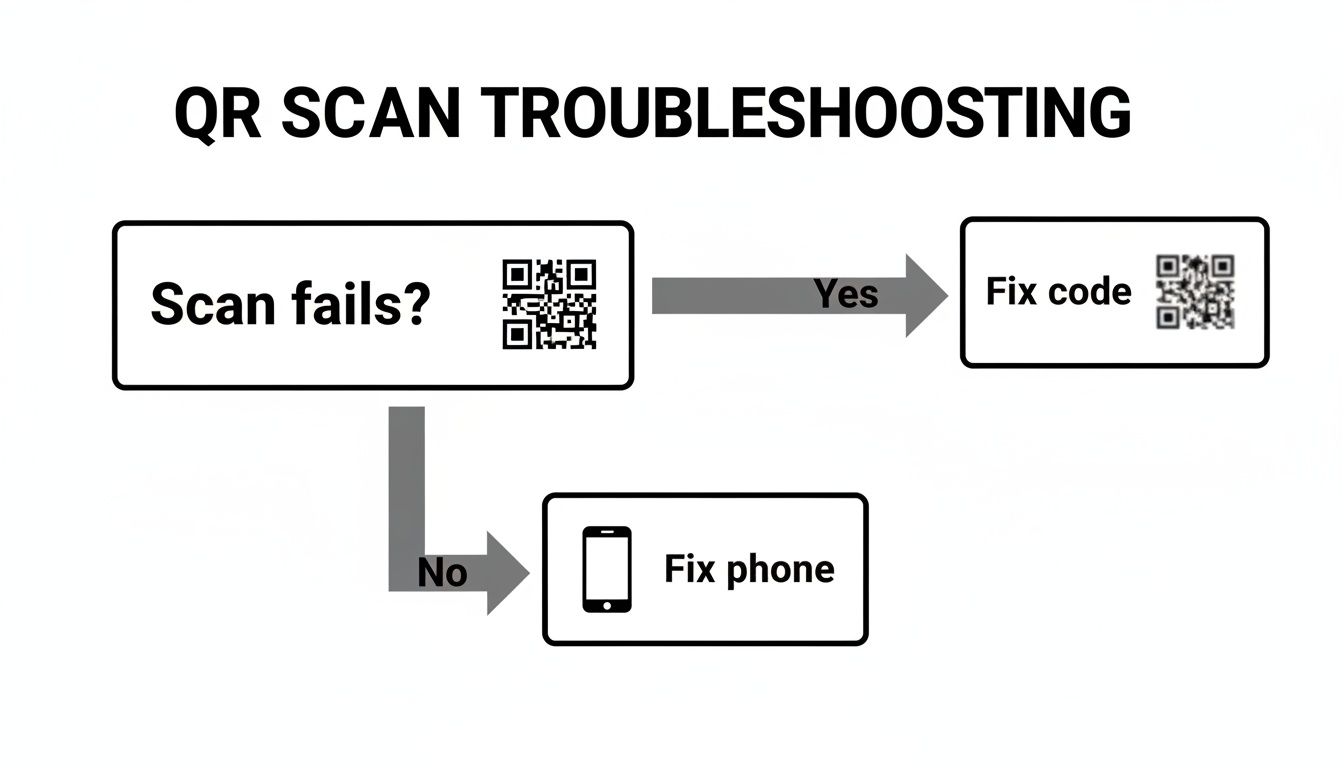
This simple guide helps you figure out what to fix first, saving you a bit of time and guesswork.
QR codes are everywhere these days, and that's especially true in the Netherlands, which was in the top 10 globally for QR code creation in 2023. With Android holding over 70% of the mobile market share here, having a smooth, native scanning experience is crucial. Since 2018, Android updates have made it possible to scan directly from the Camera app or Google Assistant, which has slashed the need for third-party scanner apps by a whopping 90% and made troubleshooting much more straightforward.
Scanning QR Codes Safely and Securely
QR codes are incredibly convenient, but that same ease of use can open the door to security risks if you’re not careful. Scammers can use them to push you towards malicious websites or trick you into handing over personal information. This tactic even has a name: 'quishing', which is just phishing but with a QR code.
Fortunately, staying safe is pretty straightforward once you know what to watch out for. The most important thing is to get into the habit of pausing for a second before you tap. When you scan a QR code on Android, your phone will almost always show you a preview of the destination URL before it opens anything.
That little preview is your first line of defence. Take a moment to actually read the link. Does it look legitimate? Or are there strange characters and obvious typos designed to fool you? This simple check can save you a world of trouble.
Spotting Red Flags in the Real World
Being vigilant about physical QR codes is just as important as digital ones. Scammers have been known to place a sticker with their own malicious code over an official one in public places. Think of parking meters, restaurant tables, or transport hubs in cities like Amsterdam or Den Haag.
Here’s a quick mental checklist to run through before you scan anything out in the wild:
- Inspect the Sticker: Does the QR code look like it was slapped on top of another one? You can often feel the edges to see if it's a sticker covering the original.
- Check the URL Preview: When you scan, does the link displayed on your screen match the company or service you expect? A QR code for a restaurant menu shouldn't lead to a strange, unrelated website.
- Trust Your Gut: If a code in a public space looks tampered with or just feels out of place, it’s best to simply avoid scanning it.
The most powerful security tool you have is your own awareness. Always, always preview the link your scanner shows you. A suspicious URL loaded with misspellings or an unusual domain is a massive red flag. Don't proceed.
Understanding how your data is handled is also a key part of staying safe online. For those interested in the technical side of things, learning about privacy-focused technologies like server-side tracking and its benefits can give you some deeper insight. By adopting these simple, cautious habits, you can use QR codes confidently without putting your security at risk.
Even though scanning a QR code on an Android phone is usually a breeze, things don't always go according to plan. When you're in a hurry, hitting a snag can be incredibly frustrating. I've pulled together some of the most common questions people have to get you sorted out quickly.
One of the biggest issues people run into is the phone simply refusing to scan. More often than not, the fix is surprisingly simple. Give your camera lens a quick wipe, make sure you're in a well-lit area, and try holding your phone about 30 cm away from the code. If that doesn't do the trick, it's worth popping into your camera settings to see if the "Scan QR codes" option has been switched off.
Why Won't My Phone Scan the QR Code?
If you've tried the basics and are still stuck, the problem might be a bit deeper, possibly with your phone's software. Really old Android devices, for example, might not have a built-in scanner. In that situation, your best bet is to use Google Lens. You can usually find it inside the Google Photos app, or you can just download it directly from the Play Store.
It's worth remembering that most scanning problems are down to the environment. Before you start thinking it's a software glitch, always double-check the lighting, your distance from the code, and the code itself. A crumpled, blurry, or poorly printed QR code is often the real culprit.
Is It Possible to Scan a Code from a Picture?
Yes, absolutely—and this is where Google Lens really shines. It's the perfect tool for the job.
Just open your Google Photos app and find the screenshot or picture with the QR code. Tap the "Lens" icon at the bottom of the screen, and it'll instantly spot the code and show you the link or action it contains. This is a lifesaver for using codes that friends have sent you or that you've found online, and it saves you from the awkward attempt of trying to scan your own screen.
Finally, while QR codes are incredibly convenient, they can bring up privacy questions about what data is being collected. You can get a better handle on managing your digital footprint by understanding how tools like Cookiebot CMP can be your website's best friend for compliance.
At People & Media B.V., we believe in empowering curiosity with clear, actionable knowledge. Explore our platform for more insights and learning opportunities.



Responses