NTFS vs exFAT Which File System Should You Use?

Choosing the right file system really boils down to one simple question: where will you be using the drive? Think of NTFS as the robust, secure workhorse for internal Windows drives. It’s packed with advanced features like file permissions and automatic data recovery, making it the default for a reason. In stark contrast, exFAT is the universal translator, built for portability and designed to work seamlessly across Windows, macOS, and Linux. This makes it the go-to choice for any external drive you plan to move between different computers.
Understanding the Core Differences
When you get a new drive, whether it's a zippy external SSD or a humble USB stick, it comes formatted with a file system. This underlying structure is like a digital librarian, organising how your data is stored, found, and managed. The two most common choices you'll face, NTFS vs exFAT, were built for completely different jobs.
NTFS (New Technology File System) is Microsoft's proprietary and highly advanced system, and it’s the standard for all modern Windows installations. It’s loaded with features that are essential for an operating system drive, including:
- Journaling: Keeps a running log of changes, which helps recover data in a flash after a system crash or power outage.
- File Permissions: Gives you granular control over who can access specific files and folders.
- Encryption: Offers the ability to natively encrypt data right on the drive for an extra layer of security.
- Compression: Includes built-in tools to shrink files on the fly, saving you precious disk space.
On the flip side, we have exFAT (Extended File Allocation Table). Microsoft created it as a lightweight and more modern replacement for the old FAT32 system. Its main purpose is maximum compatibility. It ditches the complex, OS-specific features of NTFS to provide a simple, reliable file system that just about every device can read and write to without needing special software.
This simple decision tree helps visualise the main use case for each file system.
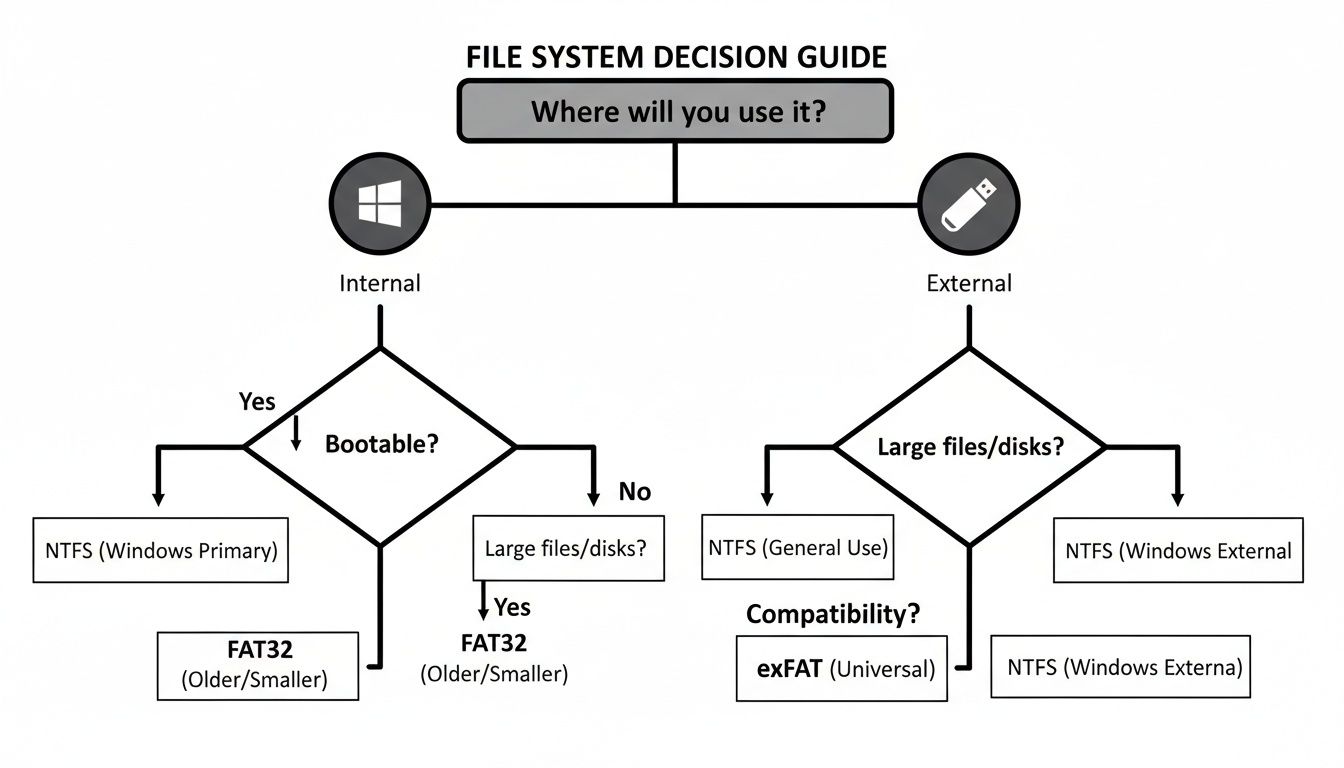
The key takeaway is pretty clear: your decision should be guided by whether the drive will live inside one ecosystem or travel between several.
Quick Comparison: NTFS vs exFAT
To make the choice even clearer, here’s a head-to-head look at their main attributes.
| Feature | NTFS | exFAT |
|---|---|---|
| Primary Use | Windows internal drives | External drives, USB sticks, SD cards |
| Compatibility | Windows (full), macOS (read-only) | Windows, macOS, Linux (full support) |
| Max File Size | 256 TB | 128 PB (Essentially unlimited) |
| Security | Robust (Permissions, Encryption) | Basic (No built-in permissions) |
| Overhead | Higher (due to advanced features) | Lower (lightweight and simple) |
This table brings the central trade-off into sharp focus. If your drive will only ever connect to Windows PCs, NTFS is the superior choice, offering better features and security. But if you need to share files with Mac users—a common scenario in creative fields—exFAT is the undisputed winner. This compatibility extends to even the most powerful machines; you can learn more about how Apple Silicon is reshaping performance for Mac computers in our related guide. Ultimately, the best file system is the one that fits how you work.
A Detailed Technical Comparison of File System Features
To really get to the bottom of the "NTFS vs exFAT" debate, we need to look under the bonnet. These file systems aren't just empty boxes for your data; their fundamental design dictates how safely, securely, and efficiently your files are managed. Each was built for a very different job, and that history shows in their technical strengths and weaknesses.
Understanding these core differences is the key to avoiding future headaches, whether that's data corruption from an accidental unplug or compatibility issues when moving files between machines.
Journaling: The Safety Net NTFS Has and exFAT Lacks
One of the biggest technical wins for NTFS is its journaling capability. You can think of it as a file system's black box recorder. Before it actually makes a change to the disk—like moving, deleting, or writing a file—NTFS first notes the intended action in a special log, the journal. Only once that log entry is secure does it carry out the task.
This two-step process is an absolute lifesaver if your system crashes or the power suddenly cuts out. When the computer restarts, it simply checks the journal. If an operation was logged but not completed, NTFS can instantly roll it back, preventing file corruption and keeping the entire file system stable.
ExFAT, designed for simplicity and speed on portable devices, skips this feature entirely. It writes changes directly to the disk, which can make some operations feel faster but leaves it incredibly vulnerable. Yank an exFAT drive out while it's writing, and you don't just risk losing that one file—you could corrupt the entire drive structure, making recovery a nightmare.
Key Insight: Journaling is the single biggest reason NTFS is the standard for operating system drives. It offers a level of resilience against unexpected shutdowns that exFAT simply can't match, making it vastly more reliable for any data you can't afford to lose.
Security and Permissions: A Clear Win for NTFS
When it comes to locking down your data, this isn't even a contest. NTFS was built from the ground up with serious security in mind, which makes sense given its role as the backbone of Windows.
- File Permissions: NTFS uses granular Access Control Lists (ACLs), letting you set specific permissions for files and folders. You can decide exactly which user accounts are allowed to read, write, change, or run a file.
- Encryption: It also has native support for the Encrypting File System (EFS). This allows you to encrypt files right on the drive, tying them directly to your user account. Even if someone steals the physical drive, the data is unreadable without your credentials.
ExFAT, on the other hand, offers none of this. It was designed to be a simple, universal format for swapping files, not protecting them. There are no built-in permissions or encryption features. Any file on an exFAT drive is fair game for anyone who can plug it in, making it a poor choice for sensitive or confidential information unless you use third-party encryption tools.
In the Netherlands, where Windows holds a commanding 60.31% market share of desktop operating systems, NTFS is the default choice for professionals and lifelong learners. Its tight integration with Windows is crucial for protecting important work, from course materials and creative projects to podcast files, using its advanced journaling and security features. You can explore more data on operating system trends in the Statcounter research.
File Size and Volume Limits: Where Both Excel
Not too long ago, file size limits were a huge deal. ExFAT’s predecessor, FAT32, had a frustrating 4 GB per-file limit, making it completely useless for modern video files, virtual machines, or large disk images. Thankfully, both NTFS and exFAT were designed to leave those limitations in the dust.
The theoretical limits for both are so enormous that for any practical purpose today, they might as well be infinite.
NTFS vs exFAT Feature Breakdown
To see the technical differences at a glance, this table breaks down the core features we’ve discussed. It's not about which one can hold more data, but how they manage it.
| Feature | NTFS (New Technology File System) | exFAT (Extended File Allocation Table) |
|---|---|---|
| Max Individual File Size | 256 Terabytes (TB) | 128 Petabytes (PB) |
| Max Volume (Partition) Size | 256 Terabytes (TB) | 128 Petabytes (PB) |
| Journaling | Yes (High data integrity) | No (Vulnerable to corruption) |
| File Permissions & Security | Yes (Robust ACLs and EFS) | No (No native support) |
| Compression | Yes (Built-in file compression) | No |
As you can see, while both file systems can handle massive files, the technology behind them is worlds apart. The real choice comes down to a trade-off: do you need the robust, protective features of NTFS, or the lightweight, universal compatibility of exFAT?
Navigating Cross-Platform Compatibility Challenges
While technical specs like journaling and encryption are important, for most of us, the real deciding factor in the NTFS vs exFAT debate boils down to one thing: compatibility. This is where theory hits the pavement, turning abstract differences into either real-world frustration or a seamless workflow. Your choice here determines whether your external drive is a universal key or one that only fits a single lock.
This isn't some minor technical detail; it directly affects how you share and access your files every day. Pick the wrong format, and a simple file transfer can bring a collaborative project to a screeching halt.
The Windows-Centric World of NTFS
NTFS is the native file system for Windows. Inside that ecosystem, it's perfect. You get full read and write access, letting you create, edit, and delete files without a second thought. But the moment an NTFS-formatted drive ventures outside the world of Windows, its limitations become glaringly obvious.
On a Mac, for instance, macOS can read files from an NTFS drive right out of the box. You can open documents, look at photos, and copy files from the drive to your Mac. The catch? You can't write back to it. That means no saving new files, no editing existing ones, and no deleting anything. It's a one-way street that makes true collaboration impossible. While some Linux distributions handle it better, support isn't always guaranteed to be flawless.
To get full read-and-write access on a Mac, you have to install third-party software. These tools act as a translator between macOS and NTFS. They work, but they usually cost money and add another layer of software you have to manage and keep updated.
exFAT: The Universal Adapter
This is where exFAT really shines, cementing its place as the go-to standard for portable storage. Microsoft designed it specifically to be a modern, lightweight file system, free from the licensing and complexity of NTFS, with the clear goal of working everywhere.
The result is a format that works effortlessly across all major operating systems:
- Windows: Complete, native read and write support.
- macOS: Full, out-of-the-box read and write capabilities. No setup needed.
- Linux: Modern versions have included full exFAT support for years now.
This universal acceptance makes exFAT the undisputed champion for any drive that needs to move between different computers. It demands no special drivers or extra software—you just plug it in, and it works. This simplifies file management significantly, especially when you need to access system files, a process you can learn more about in our guide on how to show hidden files in Finder on a Mac.
The Core Trade-Off: The choice for an external drive is a straightforward compromise. With NTFS, you get powerful security and data integrity features but sacrifice cross-platform flexibility. With exFAT, you give up those advanced features for the supreme convenience of universal compatibility.
A Real-World Scenario
Imagine a video editor on a MacBook Pro needs to work with a sound designer who uses a Windows PC. They're sharing a 500 GB project folder on an external SSD, filled with massive video clips and audio sessions.
If that drive is formatted to NTFS, the workflow immediately breaks. The video editor on the Mac can copy files from the drive, but they can’t save their edited timelines or new video renders back to it without installing special software. This creates a bottleneck, forcing them to use another drive or a cloud service just to hand off files.
Now, if that same SSD is formatted to exFAT, the process is seamless. Both the video editor on the Mac and the sound designer on the PC can read, write, edit, and save files directly to the shared drive. No extra steps, no compatibility headaches—just a smooth, efficient workflow. For any collaborative project, exFAT isn't just a convenience; it's a necessity.
Practical Scenarios for Choosing Your File System
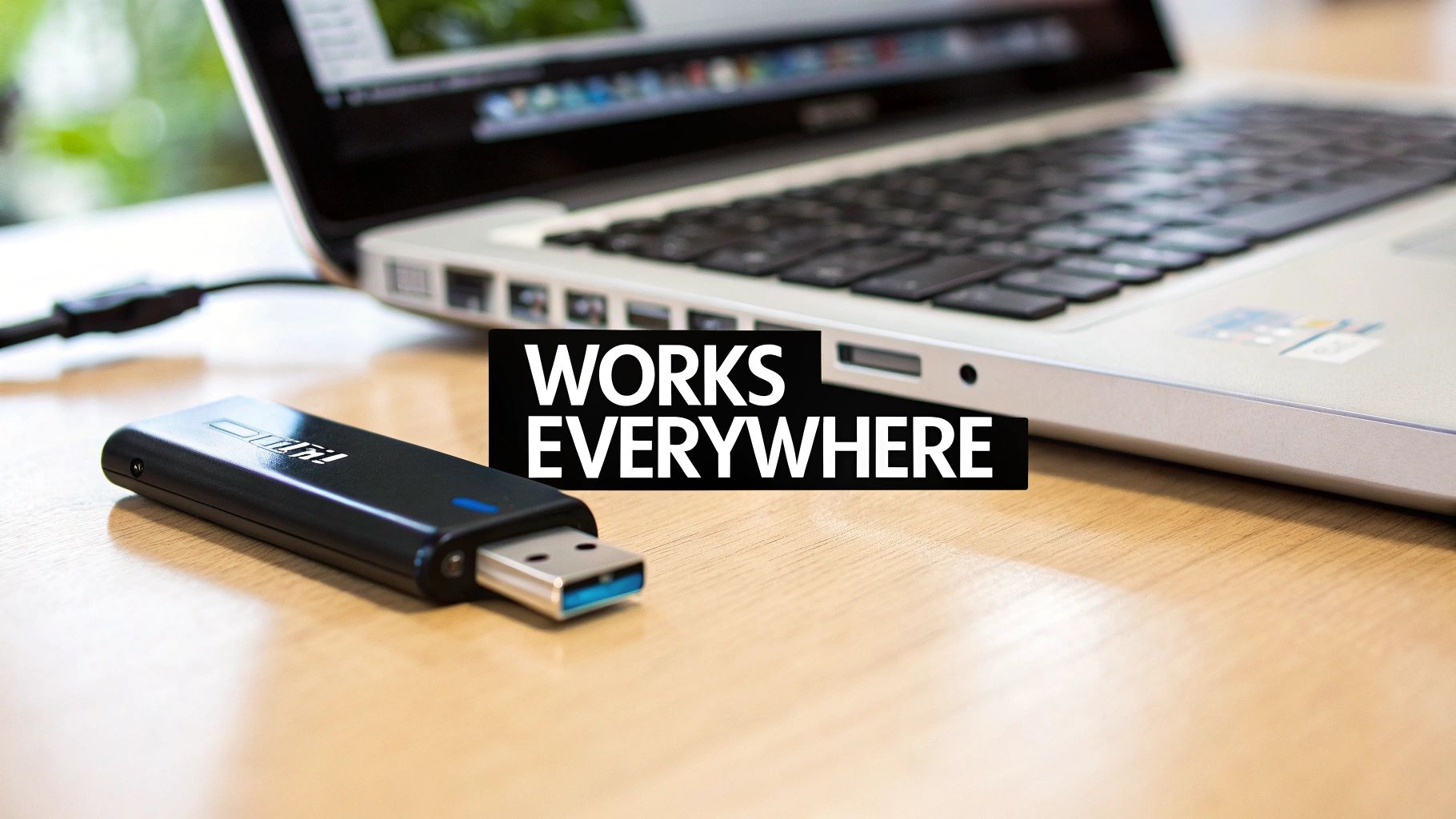
Technical specs are one thing, but how a file system behaves in the real world is what truly matters. The best choice in the NTFS vs exFAT debate boils down to what you need the drive to do. Let's walk through four common situations to give you a clear verdict for each.
Getting this right from the start saves you from a world of future headaches, from frustrating compatibility problems to, even worse, losing your data. Every use case has its own priority, whether that’s security, speed, or just being able to plug it in anywhere.
Your Internal Windows System Drive
This is the hard drive or SSD where your Windows operating system lives and breathes. It’s the digital foundation of your machine, holding everything from your personal documents to the critical files that let your computer boot up.
- Scenario: You're installing Windows on a new PC or upgrading your main internal drive.
- Verdict: NTFS is non-negotiable.
- Reasoning: The advanced features of NTFS aren't just nice-to-haves; they are absolutely essential for a stable and secure operating system. Journaling protects your system from getting corrupted if the power cuts out, and file permissions are crucial for keeping user accounts secure. Without NTFS, the core integrity of Windows is at risk.
Key Takeaway: For any internal drive running a modern version of Windows, NTFS is the only correct choice. The OS is designed from the ground up to depend on its features for daily operations.
A Large External Hard Drive for Backups
You've just bought a multi-terabyte external drive to create system images and back up your most important files. Your main goals are data integrity and long-term reliability. The right choice here really depends on your setup.
Case 1: Windows-Only Environment
- Scenario: This backup drive will only ever be plugged into Windows computers.
- Verdict: NTFS is the superior option.
- Reasoning: In a Windows-exclusive ecosystem, NTFS gives you far better data protection thanks to its journaling feature. It also supports handy extras like file compression to save space and robust security permissions, which are great for protecting sensitive archives.
Case 2: Mixed Windows and Mac Environment
- Scenario: You need to back up files from both a Windows desktop and a MacBook, or you think you might switch platforms down the road.
- Verdict: exFAT is the practical choice.
- Reasoning: While you do give up the journaling feature of NTFS, exFAT's native ability to be read and written to by both Windows and macOS without any extra software makes it incredibly flexible. The hassle of managing third-party NTFS drivers on a Mac makes exFAT the path of least resistance for cross-platform backups. While you're thinking about moving data across systems, you might also be interested in secure file sharing; for that, have a look at our guide on Dropbox alternatives that respect your privacy.
A USB Flash Drive for Sharing Files
This is probably the most common reason people use portable storage. You've got a small, handy drive for moving documents, presentations, or photos between computers at work, school, or home.
- Scenario: You need to give a presentation file to a colleague, but you have no idea if they use a Windows PC or a Mac.
- Verdict: exFAT is the clear winner.
- Reasoning: Universal compatibility is everything here. An exFAT drive will work on virtually any modern computer you plug it into, taking all the guesswork and potential tech problems out of the equation. Its lightweight nature is perfect for the simple job of transferring files.
That said, there are some odd exceptions. For instance, Land Rover's infotainment systems in the Netherlands, which comply with GSR2 regulations, specifically recommend formatting USB sticks up to 128GB to FAT32 or NTFS. They actually reject exFAT to guarantee smooth playback. This unique requirement reflects the NL's strict adherence to EU safety standards, affecting the more than 150,000 SUVs on its motorways, where drivers often use these drives for podcasts and audiobooks. You can learn more about these specific Pivi infotainment system requirements.
SD or MicroSD Card for a Digital Camera
Digital cameras, drones, and action cams all rely on memory cards to store high-resolution photos and massive video files. These cards need to work flawlessly in the camera and on a computer for editing.
- Scenario: You are setting up a new 256 GB microSD card for your 4K drone.
- Verdict: exFAT is the industry standard.
- Reasoning: ExFAT was literally designed for this. It has no practical file size limits, so recording long 4K video clips is never a problem. More importantly, it has become the de facto standard for digital devices, ensuring your SD card will work perfectly in your camera, your laptop's card reader, and any other gadget you use to view your media.
How to Format Your Drive to NTFS or exFAT
Alright, now that we’ve walked through the key differences between NTFS and exFAT, let's get practical. Putting that knowledge to use by formatting a drive is a simple enough task, but it’s one where you absolutely must pay attention.
Formatting a drive will permanently erase all data on it. This isn’t just a friendly suggestion; it’s a critical warning. Before you do anything else, back up every single file you can't afford to lose. Copy them to another drive, upload them to the cloud—whatever it takes. Once you click that format button, there's no turning back.
Formatting on a Windows PC
Windows has a straightforward formatting tool built right into File Explorer, making the process quick and painless for most external drives, USB sticks, and SD cards.
- Connect your drive to the computer and wait for it to pop up in File Explorer (usually under "This PC").
- Right-click on the drive's icon and choose Format… from the menu.
- In the new window, look for the File system dropdown. This is where you'll select either NTFS or exFAT.
- For the Allocation unit size, you’re almost always best off leaving it on the Default allocation size. This setting just controls the smallest chunk of disk space a file can use, and the default is well-optimised for general-purpose use.
- If you like, you can give your drive a new name in the Volume label field.
- Make sure Quick Format is ticked (it usually is), then click Start. You'll get one last warning—confirm it, and the process will begin.
Formatting on a macOS Computer
Over on a Mac, you'll use a powerful little app called Disk Utility. While macOS can't format a drive to NTFS on its own (you'd need extra software for that), it handles exFAT perfectly, which is ideal for drives you plan to use on both Macs and PCs.
- Plug the drive into your Mac.
- Open Disk Utility. The easiest way is to use Spotlight (Cmd + Space) and just type "Disk Utility," or you can find it in
Applications > Utilities. - Look for your external drive in the sidebar on the left. Double-check you've selected the right one!
- Click the Erase button in the toolbar at the top.
- A dialogue box will appear. Give your drive a name.
- Click the Format dropdown menu and choose ExFAT.
- Finally, click the Erase button to kick off the format.
A Crucial Point: You can't just "convert" an exFAT drive to NTFS in Windows without losing data. There’s no magic command for it. The only safe and reliable way is the old-fashioned method: back up all your files, reformat the drive to NTFS, and then copy everything back over.
When you're dealing with external storage, especially for backups or large media files, these details really matter. For instance, when you're choosing and setting up a 1TB external hard drive, the file system you pick will directly impact how and where you can use it. Taking a moment to format it correctly right from the start will save you a world of compatibility headaches down the road.
Common Questions About NTFS and exFAT
Even after digging into the technical side of things, a few specific questions always seem to pop up when it's time to choose between NTFS and exFAT. Getting these last details straight can save you from some real headaches later on.
We'll tackle the most common sticking points, from getting a Windows drive to play nice with your Mac to choosing the right format for your gaming console.
Can I Use an NTFS Drive on a Mac Without Losing Data?
Yes, you can, but it comes with some serious strings attached. Out of the box, macOS has read-only support for NTFS. This means you can open files, watch videos, and copy anything you want from the NTFS drive to your Mac, no problem. Your data is perfectly safe.
The trouble starts when you try to write anything to the drive. Natively, you can’t save new files, edit the documents already on there, or delete anything. To get full read-write access, you have to install third-party software. These tools work, but they often cost money and add an extra layer of complexity you might not want to deal with.
For anyone who regularly moves a drive between a Windows PC and a Mac, just formatting it to exFAT is by far the simpler, zero-cost way to get full compatibility on both systems.
Is NTFS or exFAT Better for a Gaming Console?
For modern gaming consoles, exFAT is nearly always the best and most compatible choice for external storage. Console makers have pretty much settled on it because it's straightforward and can handle the massive file sizes of today's games.
PlayStation 5: The PS5 is very particular. Any external USB drive you use for storing and playing PS4 games, or for just watching media, must be formatted as exFAT. It won’t recognise NTFS at all.
Xbox Series X/S: The Xbox is a little more relaxed. Its internal storage and official expansion cards use a special proprietary format, but it supports both NTFS and exFAT for external drives. You can use these for media or to store games from older generations.
Since the PS5 is strictly exFAT-only and the Xbox supports it, exFAT is the most versatile and reliable format for any gamer using external drives, especially if you own both consoles.
Why Do Some Devices Not Recognise My exFAT Drive?
While exFAT is standard on modern computers and consoles, it isn't quite universal. You can still hit a compatibility wall with older or more specialised gadgets like some smart TVs, car stereos, or digital picture frames.
Many of these devices were built before exFAT was common, or their manufacturers decided not to pay the licensing fees required back then. These gadgets often fall back on the much older FAT32 file system. For instance, Dutch users of Philips TVs, a brand in over 40% of NL households, are specifically told to format USB drives to FAT32 or NTFS. Manuals explicitly warn that exFAT can cause glitches when loading media or channel lists, a standard that broadcasters have pushed since the 2010s to ensure features like Channel List Copy work as expected. You can find more on this in the official Philips support documentation.
If your device refuses to read an exFAT drive, check the manual. You'll probably need to reformat the drive to FAT32, but just remember its 4 GB individual file size limit.
Pro Tip: If a device rejects exFAT but you need to store files larger than 4 GB, NTFS could be an option if the device happens to support it. Still, for older electronics, FAT32 remains the safest bet for compatibility, as long as you can live with its size limits.
Is There a Performance Difference Between NTFS and exFAT?
In most real-world scenarios, like copying a big video file to a speedy SSD, the performance difference between NTFS and exFAT is so tiny you’d never notice it. Your hardware—like using an SSD versus an old spinning hard drive, or a USB 3.2 connection versus USB 2.0—will have a much, much bigger impact on transfer speeds.
That said, there is a technical difference. NTFS tends to perform a little better when you're dealing with thousands of very small files. This is thanks to its more advanced structure, the Master File Table (MFT), which is more efficient at organising and finding huge numbers of tiny bits of data.
exFAT's simpler design can create a bit more overhead in these specific situations, which can slow it down slightly. But for the vast majority of us who are just moving documents, photos, and videos, this performance gap is purely academic. The choice in the NTFS vs exFAT debate should always come down to compatibility and features, not these minor speed differences.
At People & Media B.V., we believe in making complex topics clear and accessible to support your journey of lifelong learning. From understanding technology to exploring creative pursuits, our courses, articles, and podcasts are designed to help you gain practical wisdom. Discover a world of curated knowledge at https://www.peopleandmedia.com.


Responses