Ms Project Microsoft: A Comprehensive Guide to ms project microsoft

Think of Microsoft Project as the master conductor for any complex undertaking. It's the go-to project management software for planning, tracking, and managing everything from a simple marketing campaign to a major construction build. At its core, MS Project takes a chaotic jumble of tasks and turns it into a perfectly coordinated performance.
What Is Microsoft Project and Why It Matters
Imagine trying to conduct an orchestra without a musical score. Each musician might be a world-class talent, but without a unified plan, the result would be noise, not music. Microsoft Project is that score for your business.
It provides a central hub where every task, deadline, resource, and budget item comes together. This ensures everyone is playing from the same sheet music and working towards a common goal. This kind of strategic framework is absolutely essential for maintaining clarity and control.
Here’s a look at the modern, clean interface of Microsoft Project, showing how tasks, timelines, and team members are organised visually.
The visual layout clearly displays project phases, task assignments, and progress, making even the most complex information easy to digest at a glance.
Who Is This Tool Designed For?
While it’s a firm favourite among seasoned project managers and professionals within a Project Management Office (PMO), its reach extends much further.
Small business owners juggling multiple initiatives, department heads launching new products, and even event planners organising large-scale functions rely on it. Honestly, anyone tasked with delivering a complex result on time and within budget can find immense value in its capabilities.
The real purpose of Microsoft Project is to tackle common project challenges before they derail your efforts. It proactively addresses issues like budget overruns, resource conflicts, and creeping deadlines by making them visible and manageable from the start.
A Global Standard in Project Management
Microsoft Project's wide adoption across industries speaks volumes about its reliability and effectiveness. Globally, data shows that 89,988 companies use the platform across 195 countries.
Here in the Netherlands, where the IT services market is projected to hit USD 35.10 billion by 2030, tools that ensure project precision are indispensable. You can explore more data about the software's market position to see how it stacks up.
This widespread use cements its position as a leading solution for businesses aiming to sharpen their project outcomes. The platform is always evolving, too. For a look at how the broader landscape is shifting, you might explore advancements in M365 Project Planning Tools. To deepen your understanding of the structures that oversee these projects, check out our guide on the role of a PMO Project Management Officer.
Choosing the Right Version of Microsoft Project
Figuring out which version of MS Project you need can feel like shopping for a vehicle without knowing the journey ahead. Do you need a nimble city car for quick, solo trips, or are you hauling heavy cargo cross-country and require a massive lorry? The right choice hinges entirely on your team's size, your budget, and just how complex your projects really are.
Microsoft's options fall neatly into two camps: modern, cloud-based plans and the more traditional, on-premise desktop applications. Each is built for a different kind of user and a specific work environment, from a freelance consultant working alone to a sprawling multinational corporation. Getting this decision right from the start saves a lot of headaches and ensures you aren't paying for powerful features you'll never touch.
If you're wondering whether you even need a tool this powerful, this simple decision tree can help you figure it out.
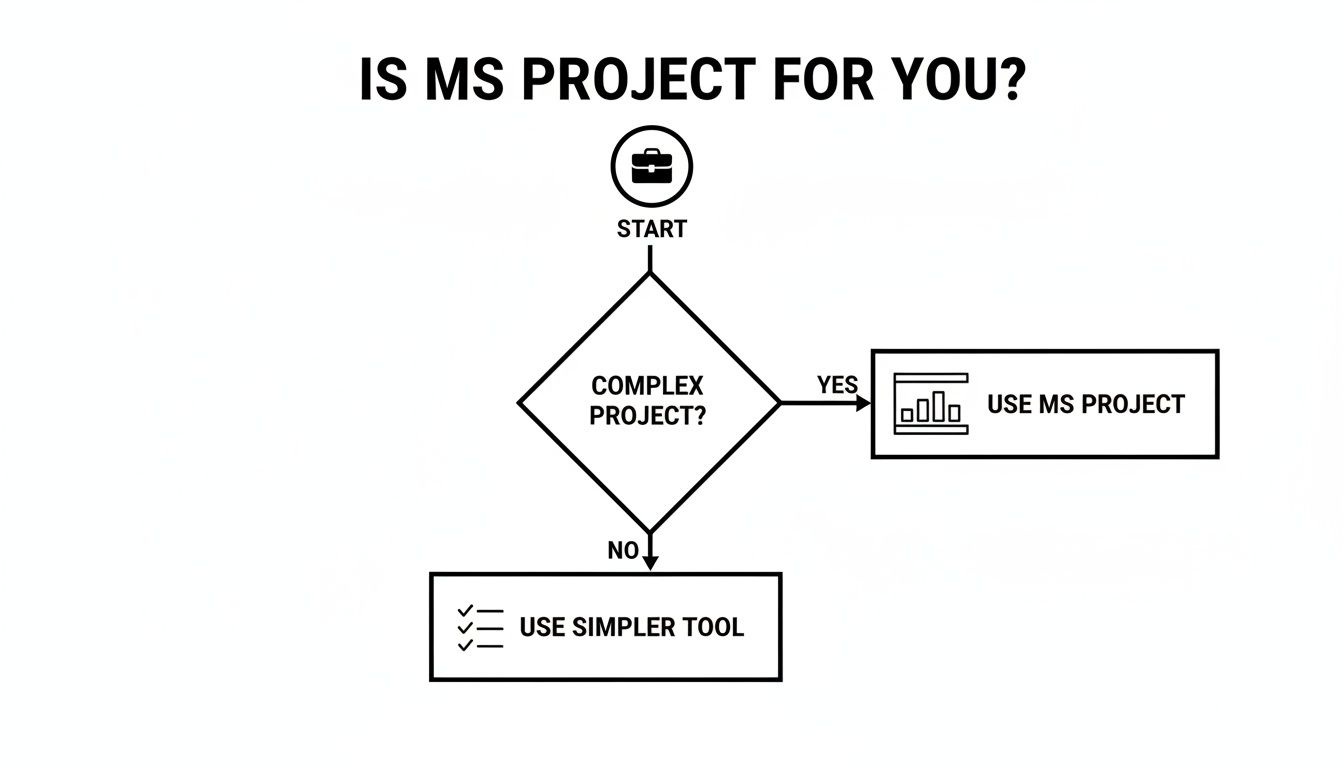
The flowchart drives home a key point: MS Project's real power shines when you're tackling projects with serious complexity. For simpler stuff, other tools might be a better fit.
Cloud Solutions For Modern Teams
Microsoft’s cloud offerings, Project for the web and Project Online, are designed from the ground up for collaboration and access from anywhere. Think of them as the central online headquarters for your projects, open 24/7 to anyone on the team with an internet connection.
- Project for the web is the entry-level, most user-friendly option. It's perfect for teams and those "accidental" project managers who need to plan and manage fairly straightforward work using a simple, visual interface.
- Project Online is a far more robust and flexible beast. It delivers comprehensive portfolio management, demand management, and enterprise-grade resource planning. This makes it the go-to for organisations juggling multiple, interconnected projects at once.
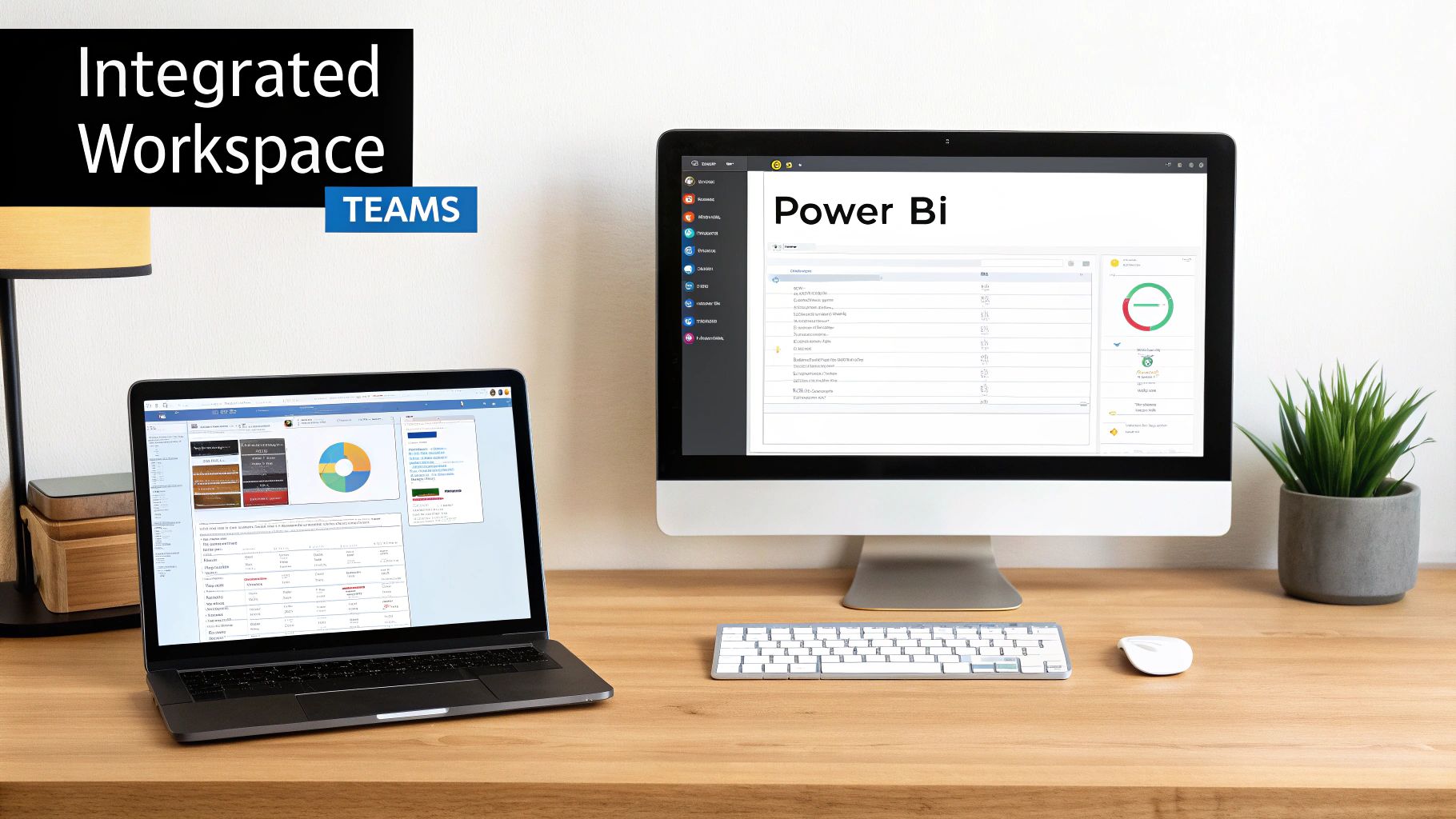
A huge advantage of these cloud versions is their seamless integration with Microsoft 365. They talk to tools like Teams and Power BI, creating a single, unified workspace. This is a game-changer for teams that need real-time updates and live collaborative planning.
Desktop Applications For Focused Control
On the other side of the fence, you have the standalone desktop applications: Project Standard and Project Professional. These are the old guard—you install them directly onto a single computer. They're ideal for individuals who need to manage projects in-depth without the need for constant, real-time team collaboration.
A freelance construction consultant, for instance, would find Project Standard perfectly suited for mapping out a client's detailed building schedule and Gantt charts, all without the overhead of a cloud subscription. The focus here is on powerful, self-contained project management.
Project Professional packs in everything from the Standard version but adds advanced tools like resource management and the ability to sync with Project Online, giving you a hybrid option.
Of course, when you're sizing up project management software, it's always wise to see how it stacks up against the competition. You can see a great head-to-head comparison of Microsoft Project versus Trello to understand the differences in approach. And if you're exploring beyond the Microsoft ecosystem, our guide on free alternatives to Microsoft Office has plenty of other options to consider.
Your Guide to Core Project Management Features
Diving into MS Project feels a bit like stepping into the engine room of a large ship. It’s where the real work happens, and getting a handle on its core features is the key to steering your projects to a successful destination. These aren't just abstract functions; they are the practical tools you'll use day-in and day-out to solve the most common challenges in project management.
Let’s pull back the curtain on the essential components that turn a simple to-do list into a dynamic, bulletproof project plan. Each feature builds on the last, creating a powerful system for bringing clarity and control to the chaos.
Visualising Success with Gantt Charts
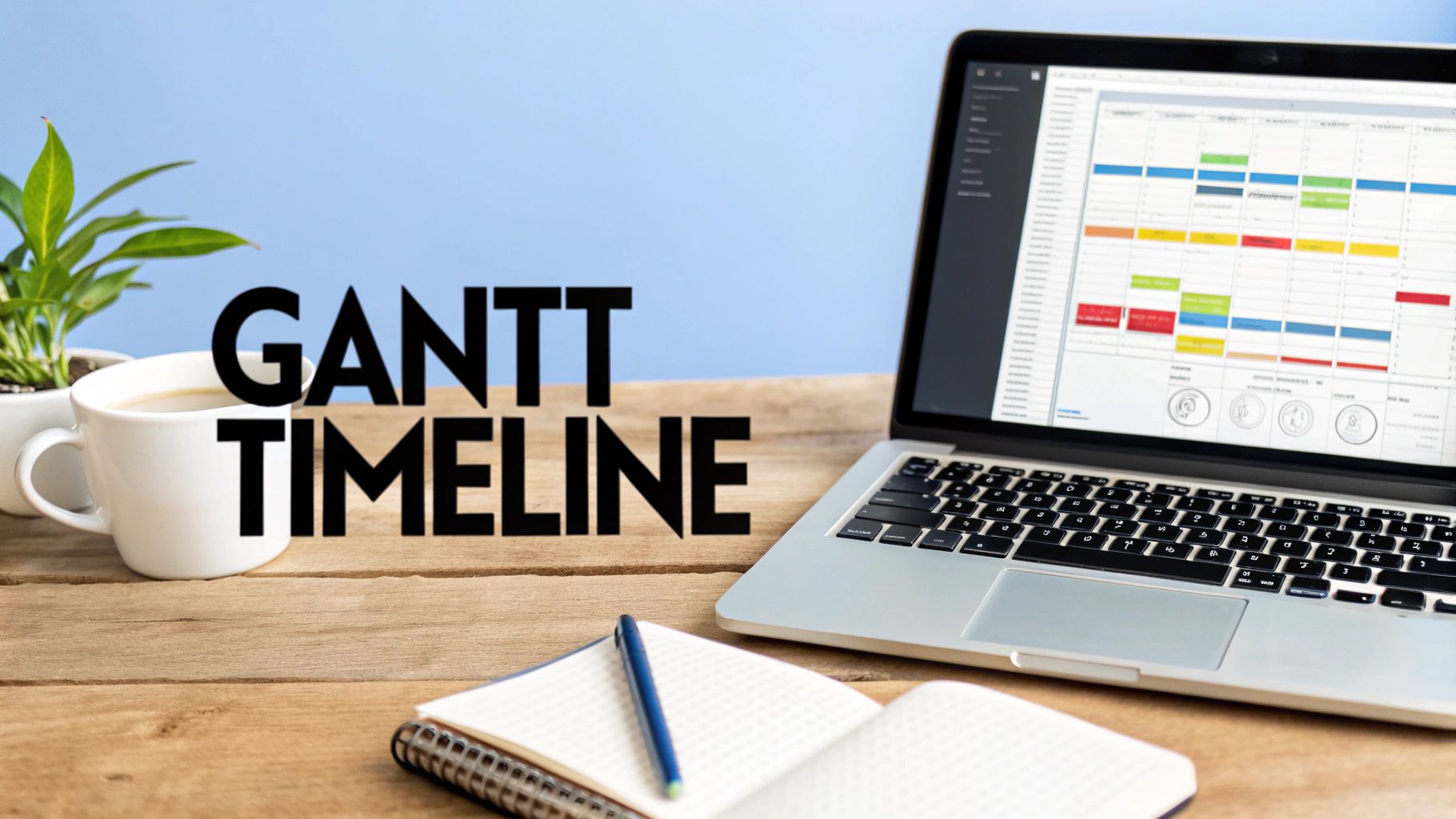
At the very heart of Microsoft Project lies the Gantt chart. It’s so much more than just a colourful bar graph; a Gantt chart is a living, visual map of your entire project. It doesn’t just show you what needs to be done and when, but crucially, how every single task connects to the others.
Think of it like a set of dominoes. The chart shows you exactly which domino (task) has to fall before the next one can be tipped over. This concept is called task dependencies, and it’s absolutely vital for building a realistic timeline. A well-organised Gantt chart instantly answers the big questions:
- What’s the project’s critical path? These are the essential tasks that, if delayed by even a day, will push back your final delivery date.
- Which tasks can run in parallel? Spotting these helps you use your team's time much more efficiently.
- How does a delay in one area affect everything else? The chart gives you a clear visual of the ripple effect across the entire plan.
Mastering the Gantt chart in MS Project means you stop putting out fires and start planning ahead. You can see potential bottlenecks coming weeks or even months in advance.
Mastering the Art of Resource Management
A project plan is pretty useless without the right people to actually do the work. This is where resource management comes in, and it's an area where the software truly shines. This feature is all about assigning your team members, equipment, or materials to specific tasks and keeping a close eye on their allocation.
The main goal here is to make sure nobody on your team is completely swamped while others are sitting around waiting for something to do. The software gives you crystal-clear views of each person's workload, helping you spot potential burnout before it becomes a problem. Good resource management lets you:
- Assign Tasks Realistically: See at a glance who is available and who is already stretched to their limit.
- Level Resources Automatically: Let MS Project suggest clever adjustments to fix over-allocations, smoothing out workloads across the team.
- Track Costs Accurately: By plugging in hourly rates or fixed costs for your resources, your budget tracking becomes incredibly precise.
Setting a Baseline to Measure Performance
So, how do you know if your project is actually on track? Simple: you measure it against your original plan. In MS Project, this original plan is called a baseline.
Think of a baseline as a snapshot of your project's schedule, budget, and scope, taken right at the very beginning. Once you set it, it becomes the official benchmark against which all future progress is measured.
This isn’t just some administrative box-ticking exercise; it’s your number one defence against scope creep. When a stakeholder asks for "just one more small change," you can immediately show them how that change blows out the timeline and budget compared to the baseline everyone agreed on. It gives you the hard data you need to make informed decisions and keeps everyone honest about the initial goals.
Putting It All Together: A Practical Workflow
Reading about features is one thing, but seeing MS Project in action is where it really clicks. To show you how all these tools come together, let's walk through a typical project from start to finish. We'll use a common example: launching a new marketing campaign for a product release. This gives us a concrete blueprint you can easily adapt for your own work.
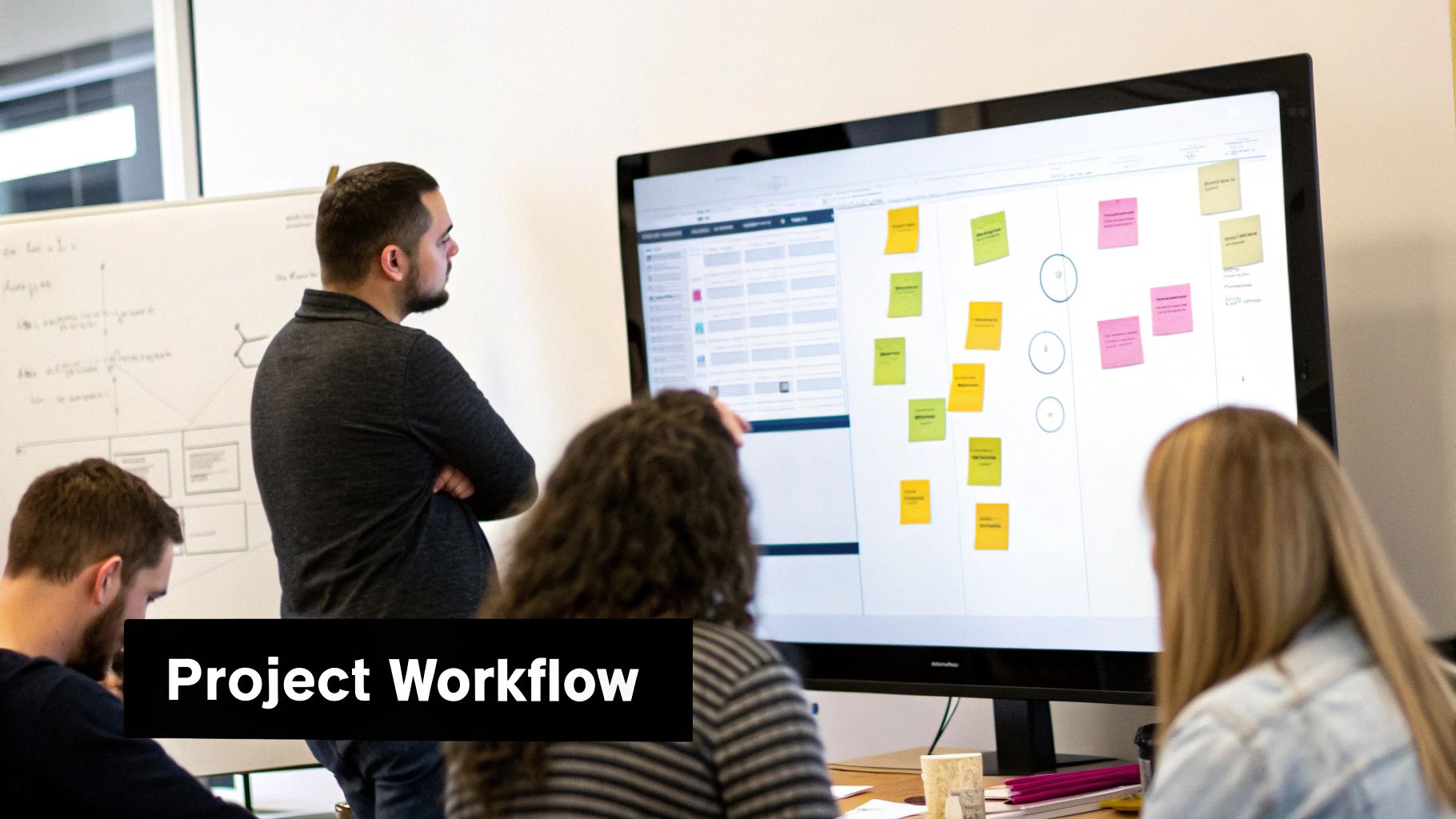
Every project starts not in the software, but with an idea. The goal is to drive awareness and generate leads for the new product. From there, we’ll break this high-level objective down into smaller, manageable pieces, turning a vague idea into a structured, actionable plan.
From Initial Idea to a Structured Plan
First things first, we need to translate the campaign's goals into a Work Breakdown Structure (WBS). This is just a fancy way of saying we list every major task and then break each one down into smaller sub-tasks. It’s the skeleton of our project.
For our marketing campaign, the WBS might look something like this:
- Phase 1: Strategy and Planning
- Define the target audience
- Set the campaign budget
- Develop core messaging
- Phase 2: Content Creation
- Write blog posts
- Design social media graphics
- Produce a promotional video
- Phase 3: Campaign Launch and Execution
- Schedule social media posts
- Launch the email marketing sequence
- Run paid advertising
We enter each of these tasks into Microsoft Project, assigning estimated durations and creating dependencies between them. For instance, the "Design social media graphics" task obviously can't start until "Develop core messaging" is complete. This logical linking is what brings the Gantt chart to life and immediately highlights the project's critical path.
Next, we assign our people—the graphic designer, copywriter, and digital marketer—to their respective tasks, keeping an eye on their workloads to make sure no one is overbooked.
Tracking Progress and Managing Change
With the plan built, it's time to set a baseline. Think of this as taking a snapshot of the initial schedule and budget. It gives us a fixed benchmark we can use to measure our performance as we go. As the team gets to work, they update the percentage complete for their tasks, and we can see progress in real-time.
But projects rarely go exactly as planned. Let's say the promotional video production gets delayed by a week. Because we defined our task dependencies earlier, MS Project instantly shows us the knock-on effect this has on the final campaign launch date.
This visibility is crucial. It lets the project manager act proactively—perhaps by reallocating resources or adjusting the schedule for non-critical tasks—to get things back on track.
This dynamic tracking is the very heart of effective project management. It transforms the plan from a static document into a living, breathing guide that helps you navigate surprises and keep everyone informed with accurate, data-driven reports.
This ability to coordinate complex moving parts is essential, especially as the way we work evolves. The Dutch IT services market is a perfect example. While on-site work traditionally accounted for 47% of spending, the shift to hybrid models is accelerating, with remote contracts growing at a 16.30% CAGR. This trend demands robust tools like MS Project to keep Dutch project managers and their geographically dispersed teams perfectly aligned. You can explore a deeper analysis of how service delivery models are transforming in the Netherlands IT market.
Common Mistakes and How to Avoid Them
Knowing what all the buttons do in Microsoft Project is one thing. Actually using it to keep a project from going off the rails? That's a completely different ball game. Even the most powerful software can become a source of frustration if you stumble into a few common traps. These mistakes can quickly turn a clear, simple plan into a confusing mess, sinking your project before it even sets sail.
But here's the good news: by understanding these pitfalls from the get-go, you can sidestep them entirely and adopt solid habits from day one. It’s all about making the software work for you, keeping things clear and under control, rather than getting tangled up in its complexity.
Mistake 1: Getting Lost in the Weeds with Overly Complex Schedules
One of the most common blunders is building a plan with a ridiculous level of detail. It’s tempting, I get it. You want to break every task down into dozens of tiny sub-tasks, thinking you're being thorough. In reality, you're just creating a schedule that's impossible to manage. This kind of micromanagement just creates noise, making it incredibly difficult to see the big picture and track what actually matters.
Instead of drowning in minor details, pour your energy into defining and tracking the big wins: your major milestones. Think of milestones as the crucial signposts on your project's journey—they mark the completion of a major phase or a key deliverable and tell everyone if you're on track.
Best Practice: Keep your Work Breakdown Structure (WBS) to a maximum of three levels deep. This gives you enough detail to be useful without becoming a monster to update. It keeps you and your stakeholders focused on the critical path and the outcomes that truly count.
Mistake 2: Forgetting About the Humans (Neglecting Resource Management)
Another classic error is treating resource management as an afterthought. Just plugging names next to tasks without considering anyone's actual workload is a recipe for disaster. It almost always leads to over-allocating your best people, which causes burnout, missed deadlines, and a nosedive in quality. A project plan without realistic resource levelling isn't a plan at all—it's just a wish list.
Great project management means treating your team's time like the precious, finite resource it is. Thankfully, MS Project has some powerful tools to stop this exact problem from happening.
Here’s how to get it right:
- Live in the Resource Views: Make a habit of regularly checking the "Resource Usage" and "Resource Sheet" views. They give you a crystal-clear, visual snapshot of who is working on what and, more importantly, if they're stretched too thin.
- Embrace Resource Levelling: Use the built-in levelling feature. It automatically finds and helps you resolve conflicts where someone is assigned way too much work at the same time. It’s a lifesaver.
- Actually Talk to Your Team: The software gives you the data, but it’s no substitute for a real conversation. Check in with your team regularly to make sure the workloads shown on the screen feel manageable and realistic in the real world.
Integrating Microsoft Project with Your Existing Tools
Modern projects don't exist in a vacuum. Your project plan is only as good as its connection to the daily tools your team already relies on. This is where MS Project really shines, transforming from a standalone planning tool into a genuine command centre for your entire workflow.
The real strength of Microsoft Project lies in how deeply it’s woven into the broader Microsoft 365 ecosystem. Instead of forcing your team to constantly jump between different applications, it creates a unified hub where information flows freely. This simple change dramatically reduces friction and ensures everyone is working from the same script.
Building a Unified Project Hub
Think of these integrations as bridges connecting your central project plan to where the actual work happens—in your team's communication channels and data analysis tools. This connectivity ensures that the high-level strategy you map out in MS Project translates directly into the day-to-day actions of your team.
Here are the key integrations that make this possible:
- Microsoft Teams: This is the most crucial link for collaboration. You can embed your project plans directly into a Teams channel, allowing for real-time discussions, file sharing, and task updates right where the conversation is happening. No more switching contexts.
- Power BI: This connection turns your dry project data into dynamic, visual dashboards. Instead of sending out static reports, you can create interactive visuals that track progress, monitor budgets, and flag risks for stakeholders in a way that’s easy to digest.
- Outlook: Syncing tasks and deadlines with Outlook calendars ensures that project milestones are visible alongside everyone's daily schedules. It’s a small thing, but it makes a huge difference in helping team members manage their time effectively.
By weaving these tools together, you move beyond simple project tracking. You create an intelligent, interconnected environment where strategic plans and daily execution are perfectly aligned, boosting overall productivity.
For teams exploring different project management solutions, understanding how various platforms handle task organisation is key. If your current methods feel a bit too simple, you might find our guide on Trello alternatives that go beyond simple boards insightful. This capability for deep integration is a core advantage of using a tool like ms project microsoft within its native environment.
A Few Lingering Questions About MS Project
Even after getting a clearer picture of what MS Project can do, a few practical questions might still be bouncing around in your head. Let's tackle the most common ones and clear up any final doubts.
Do I Need a Certification to Use MS Project?
Absolutely not. While it's certainly a favourite tool for certified PMPs, you don't need a special credential to get started. Modern versions, especially Project for the web, are designed to be far more intuitive.
They're perfect for team leads, department heads, or anyone who's become an "accidental" project manager. You can easily start with simple task planning and then dig into the more powerful features as your projects get bigger and more complex.
Isn't This Just the Same as Microsoft Planner?
That's a common point of confusion, but no, they serve very different purposes. Microsoft Planner is a fantastic, simple tool for managing a team's day-to-day tasks, usually with a visual Kanban board.
On the other hand, MS Project is a full-blown solution built to handle the heavy lifting of complex projects—think intricate schedules, resource dependencies that stretch across teams, and detailed budget tracking.
A good way to think about it is this: Planner helps a team manage their weekly to-do list, while Project makes sure the entire six-month initiative finishes on time and doesn't blow the budget. They actually work great together, covering both the micro and macro levels of work.
Does Everyone on My Team Need a Full MS Project Licence?
Not necessarily, and this is where the licensing has become much more flexible, especially with the cloud-based plans. Typically, the project managers—the people actually building and managing the detailed plans—will need a full licence.
However, team members who just need to see the plan and update the status of their own tasks can often get by with a more affordable, view-only licence. Better yet, they can often access and update their assigned tasks directly through integrations with tools they already use, like Microsoft Teams.
At People & Media B.V., we believe in the power of structured knowledge to achieve great things. To continue building your skills, explore our curated courses and resources designed for lifelong learners at https://www.peopleandmedia.com.



Responses