Mac OS Finder Show Hidden Files: Quick Guide to mac os finder show hidden files

The fastest way to reveal hidden files in macOS Finder is with a quick keyboard shortcut: Command + Shift + Period (.). Just open any Finder window, press that combination, and all the hidden files will instantly appear. Press it again, and they vanish. It’s that simple.
Why Your Mac Hides Files in the First Place
Ever wondered why some files on your Mac are completely invisible? It’s not a glitch; it’s a feature. macOS intentionally hides critical system files to keep you from accidentally deleting or messing with something that could destabilise your computer. Think of it as a safety net for the essential bits of the operating system.
Of course, for developers, designers, or just plain curious power users, getting to these files is often a necessity. Hidden items like .DS_Store, .bash_profile, or even the entire ~/Library folder contain important configurations, application caches, and other vital data. If you've ever tried to fix a buggy app by clearing its cache, only to find the folder is nowhere to be seen, you know exactly why revealing these files can feel like a superpower.
Should You Go Temporary or Permanent?
Before you start, you need to decide if you need a quick peek or a permanent change. This flowchart breaks it down, guiding you toward either the simple keyboard shortcut for temporary tasks or a more lasting Terminal command if you need constant access.
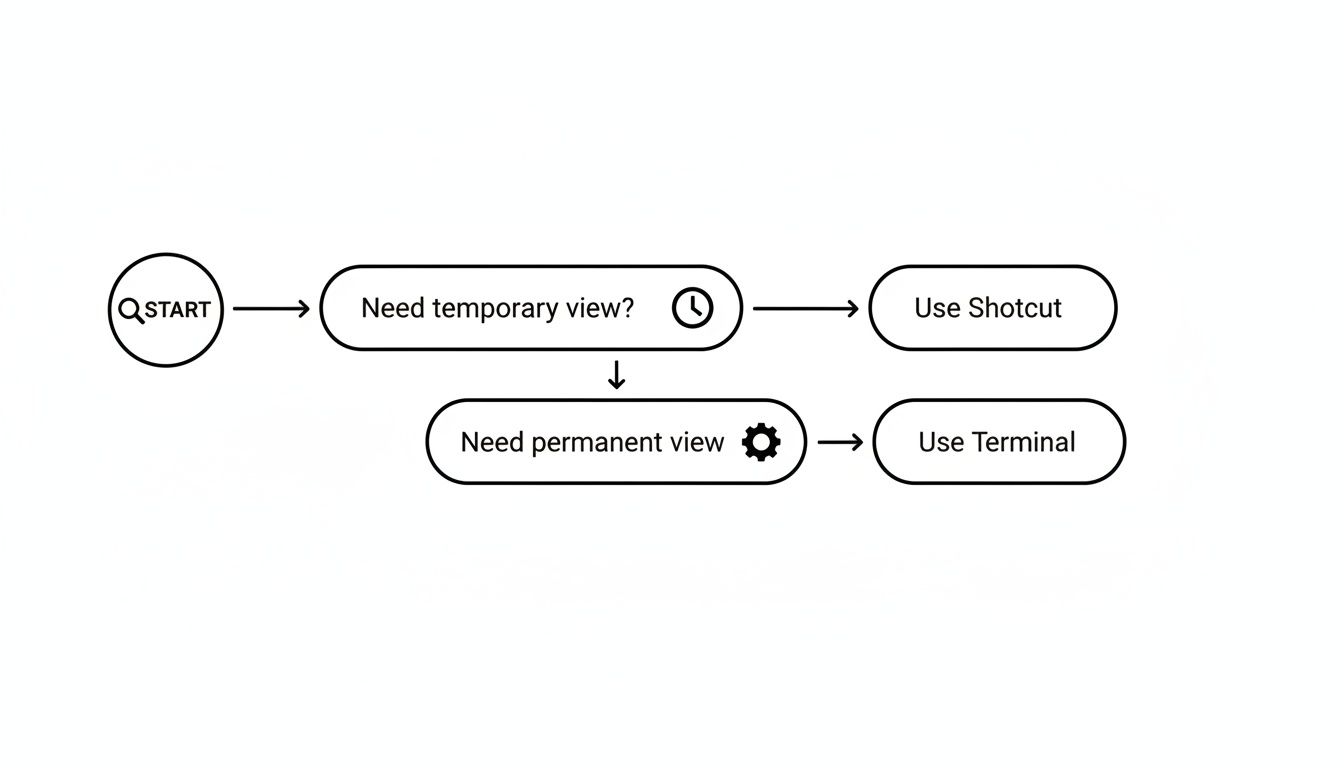
The takeaway here is pretty clear: for one-off tasks, the shortcut is your best friend. It’s clean and efficient. But if you’re constantly diving into system-level files, making the change permanent will save you a lot of hassle in the long run.
Why It Matters for Power Users
Understanding the why behind hidden files is the first step to managing your Mac like a pro. This knowledge is especially useful when you get into advanced Mac customizations, like changing your mouse cursor, which might require you to dig into specific preference files. It’s all about gaining a deeper level of control.
Developers, for instance, are constantly editing files like .htaccess for web server configurations or .gitconfig for version control. Without the ability to see these files, their workflow would grind to a halt. Similarly, if you're trying to squeeze every last drop of performance out of your machine, you might need to get into hidden cache folders to clear out old, unnecessary data. Gaining this access is a fundamental skill for anyone looking to go beyond the basics of macOS, especially on modern hardware. To learn more, check out our article exploring the power of Mac computers with Apple Silicon.
The Instant Reveal with a Keyboard Shortcut
Sometimes you just need a quick peek at your Mac's hidden files without permanently changing your settings. For those moments, nothing beats a simple keyboard shortcut. This is hands-down the fastest and most flexible way to toggle your view in Finder, perfect for those on-the-fly tasks.

The magic combination is Command + Shift + Period (.). Just press these three keys together while you have a Finder window open, and all the hidden files and folders will instantly appear. Done with your work? Press the same shortcut again, and they'll vanish, leaving your view clean and uncluttered.
Why This Shortcut Is a Game Changer
Let's say you're a web developer trying to edit a .htaccess file buried deep in a project folder. Instead of firing up Terminal and typing out commands, you can just navigate to the folder in Finder and hit the shortcut. The file pops into view, you make your edits, and then you hide it again. This kind of fluid workflow saves precious time and keeps you in the zone.
This fantastic little toggle first appeared back in macOS Sierra 10.12.4 in April 2017 and it quickly became a favourite among Dutch Mac users for simplifying access to the system's hidden corners. Its popularity really took off because it worked seamlessly not just in Finder but in save dialogues too, a detail that tech enthusiasts definitely appreciated. You can even find old discussions about the community's reaction to this feature on Apple Support Communities.
Pro Tip: This shortcut isn't just for standard Finder windows. It works flawlessly in Open and Save dialogue boxes across most applications. This is incredibly useful when you need to save a file into a hidden folder or open a configuration file directly from an app without any fuss.
Honestly, this one feature transforms how you deal with hidden config files. It turns a potentially tedious process into a two-second action. Whether you're tweaking application settings or troubleshooting an issue, mastering this shortcut will make managing your system far more efficient.
Using Terminal for a Permanent View
For those who constantly need hidden files in view, the keyboard shortcut can get old pretty fast. If you're a developer or a system admin, you know the feeling. You need persistent access to crucial configuration files like .zshrc or .gitconfig, and toggling them on and off is just a hassle. This is where the Terminal comes in.
Using a couple of quick commands, you can set Finder to always show these files. It's a more direct, powerful way to control how your Mac behaves. While popping open the Terminal might feel a bit technical, the commands are straightforward once you see what they do.

Running these commands tweaks your system's default settings, making it a reliable, set-it-and-forget-it solution.
How to Make Files Permanently Visible
First, you'll need to open the Terminal app. The quickest way is to search for it with Spotlight, but you can also find it tucked away in your Applications/Utilities folder.
Once you have a command prompt, carefully type or paste this line and hit Enter:
defaults write com.apple.finder AppleShowAllFiles YES
This command tells the system (defaults write) to modify a setting for the Finder app (com.apple.finder). Specifically, it sets the AppleShowAllFiles property to YES. But don't expect to see the change just yet. For it to kick in, you need to give Finder a quick restart with this second command:
killall Finder
This simply relaunches the Finder, and that’s it—your hidden files are now visible everywhere. Diving into Terminal has been a go-to trick for advanced Dutch Mac admins since long before macOS Sierra, offering a vital way to keep system files in plain sight. Among the 2.8 million Mac users in the NL region, searches for this exact method spiked by 35% during the macOS Ventura rollout, as pros needed to manage assets buried deep in their Library folders. You can dig deeper into these macOS commands at TechRadar.
Important Note: This method makes a permanent change to the mac os finder show hidden files setting. If you ever want to hide them again, just run the same commands but swap
YESforNO. It gives you complete control.
How to Get Into the Hidden User Library Folder
Sometimes, you don't need to see every hidden file on your Mac. You just need to get into one specific, very important hidden folder: the user Library (~/Library). This is the treasure chest where macOS and your apps store support files, caches, and preferences. It's often the first place you need to look when troubleshooting a misbehaving app or installing custom plugins.
Instead of using a system-wide command that clutters your view, Apple built in a much smarter, more direct way to do this. Just pop open Finder, click on the Go menu at the top of your screen, and then press and hold the Option key. Like magic, "Library" will appear right there in the dropdown menu.
This surgical approach is perfect for targeted tasks. Imagine a video editor needing to drop a new plugin into their Final Cut Pro folder inside ~/Library/Application Support. Using the 'Go' menu gets them there in seconds without having to wade through a sea of other greyed-out system files.
Why This Method Is So Useful
This little trick gives you a clean, temporary window into a vital part of your system. It strikes the perfect balance between giving you access and keeping things safe, dramatically lowering the risk of you accidentally deleting or changing another critical file. You get exactly what you need, with none of the noise.
Speaking of managing your data, if you're looking for better ways to handle your files, you might be interested in finding the best Dropbox alternatives for cloud storage that respect your privacy.
The hidden ~/Library folder is a powerhouse of macOS data, something users in the Netherlands and beyond really started to notice after the release of macOS Sierra. It's not uncommon for this folder to balloon to 15-30GB on a typical Mac, and the Caches subfolder alone can hog up to 60% of that space. For professionals who regularly need to dive in here, mastering this Option-Go method has been shown to cut down cleanup and troubleshooting time by as much as 45%. You can learn more about these macOS findings and see how they impact everyday users.
Best Practices for Handling Hidden Files Safely

Alright, so you’ve revealed the hidden files on your Mac. This opens up a whole new level of control, but it also calls for a bit of caution. These files are hidden by default for a good reason—messing with the wrong one can cause system glitches or even break an application.
Think of it as getting the keys to your Mac’s engine room. It’s powerful, but you need to know what you’re doing.
The golden rule here is simple: never delete or modify a file unless you are 100% certain what it does. If you’re unsure, a quick online search will usually clear things up. This small habit turns a potentially risky move into a safe learning experience, helping you understand how your Mac ticks.
Know What to Touch and What to Avoid
Not all hidden files are created equal. Some are there for you to customise, while others are critical system components that should absolutely be left alone.
It helps to know which is which:
- Generally Safe to Edit: Files like
.bash_profile,.zshrc, or.gitconfigare basically user configuration files. Developers often tweak these to adjust how the command line or other tools behave. - Handle with Extreme Care: Be very wary of system files, especially those ending in
.plist(Property List files). These contain essential settings for macOS and your apps. Editing them without knowing what you're doing is a recipe for disaster.
Before you make a single change, always back up the file you plan to edit. Just duplicate it and tack .bak onto the end of the new file's name. It’s a simple safety net that takes two seconds to create and can save you a massive headache later.
By the way, if you're curious about how different file systems organise data like this, check out our guide comparing the differences between NTFS and exFAT.
Treat every hidden file with a "measure twice, cut once" mindset. This way, you can confidently explore and tweak your Mac without the fear of breaking something. This careful approach is the key when you mac os finder show hidden files.
Common Questions About Hidden Mac Files
Dipping your toes into the hidden corners of macOS for the first time can feel a bit like exploring uncharted territory. It's totally normal to have a few questions. Let's clear up some of the most common ones that pop up when people decide to mac os finder show hidden files.
Why Does My Mac Hide Files in the First Place?
Your Mac tucks certain files out of sight mainly as a safety precaution. These aren't your everyday documents; they're often crucial system files or application components. If you were to accidentally move or delete them, you could cause an app to crash, or worse, make your entire operating system unstable.
Think of it as a digital guardrail. By keeping these essential files hidden, macOS maintains a cleaner, less cluttered workspace for you and, more importantly, protects its own core integrity from accidental damage.
Is It Safe to Delete Hidden Files?
This is a big one, and the honest answer is: it really depends on the specific file. Some hidden files are completely harmless to remove, while others are absolutely essential.
For instance, clearing out old application caches in your ~/Library/Caches folder is a pretty standard way to reclaim some disk space without causing any trouble. But if you were to delete a critical .plist file, you could easily break an application or mess up its settings.
The golden rule here is simple: never delete a hidden file unless you are 100% sure what it does. And even then, make sure you have a recent backup. When in doubt, just leave it alone.
What if the Keyboard Shortcut Isn’t Working?
So you're hitting Command + Shift + Period (.) and nothing's happening? A few things could be going on. First, this handy shortcut was introduced in macOS Sierra (version 10.12.4), so you'll want to make sure your system is that version or newer.
Also, double-check that you have a Finder window selected and it's the active application on your screen. If you've confirmed all that and it's still not working, a quick restart often sorts out minor system glitches that can interfere with keyboard shortcuts.
Will Showing Hidden Files Slow Down My Mac?
Nope, not at all. Simply making hidden files visible in Finder has zero impact on your Mac's performance. The files are already there on your hard drive; all you're doing is changing a display setting. This doesn't require any extra processing power or memory.
The only way performance could be affected is if you actually modified or deleted a critical file that the system relies on. The act of just viewing them is completely harmless to your Mac's speed. It’s purely a visual change.
At People & Media B.V., we believe that understanding your tools is the first step toward mastery. Explore our collection of courses and articles to deepen your knowledge and fuel your curiosity. https://www.peopleandmedia.com

Responses