Wake On LAN A Practical Guide to Remote PC Power Up

Ever felt like you have a remote control for your computer's power button, one that works from absolutely anywhere? That’s pretty much Wake on LAN (WoL) in a nutshell. It’s a clever bit of networking technology that lets you fire up a computer from a low-power state, like sleep or even a full shutdown, with a simple signal from another device. It's a long-established standard, but it's more useful today than ever before.
What Is Wake On LAN and How Does It Help You?

At its heart, Wake on LAN solves a very common problem: how to get to a computer that's switched off without physically being there. This isn’t just a small convenience; it's a genuinely powerful tool for boosting efficiency, cutting down on energy bills, and making remote management a breeze.
Think of it as sending a digital wake-up call. Your computer isn't truly dead to the world when it's "off." Instead, its network interface card (NIC) stays in a low-power listening mode, just waiting for a very specific command. Once it gets this special instruction—a little data burst known as a "magic packet"—it tells the motherboard to spring to life and boot up the whole system.
The Practical Benefits of Remote Power
The real-world uses for this are incredibly broad and genuinely useful. For home users, it means you can be travelling with a lightweight laptop and still pull files from your beast of a desktop PC back home. Or you could be settled on the sofa and use your phone to start up your home media server, getting it ready to stream a film without ever having to get up.
For IT professionals, the perks are even bigger. They can schedule after-hours maintenance, push out critical software updates, or run diagnostics on hundreds of machines across an entire company, all without anyone needing to be on-site. This kind of centralised control is a massive time and resource saver. In the Netherlands, where the remote work adoption rate is a staggering 51.9% (the highest in the EU), Wake-on-LAN has become a go-to tool for managing fleets of devices from afar.
Wake on LAN gives you the best of both worlds. You get the energy-saving benefits of a powered-down machine combined with the on-demand access of one that’s always on.
Here’s a quick look at how WoL brings value to different scenarios:
Real-World Benefits of Using Wake On LAN
| Benefit | How It Works | Who It Helps |
|---|---|---|
| Energy Savings | Keeps PCs in a very low power state until needed, drastically cutting electricity use. | Businesses with many workstations, and home users looking to lower their bills. |
| Remote Access | Allows users to access files or run applications on their main computer from anywhere. | Remote workers, travellers, and anyone needing access to their home or office PC. |
| Efficient IT Management | Enables IT admins to perform updates, patches, and maintenance outside of working hours. | IT departments in companies of all sizes, from small offices to large enterprises. |
| Convenience | Starts up media servers, gaming PCs, or workstations with a simple tap on a phone or laptop. | Home users, gamers, and media enthusiasts who want instant access to their devices. |
As you can see, the applications are practical and cater to a wide range of needs, from saving money to making life more convenient.
Understanding the Core Components
To get Wake on LAN up and running, a few key pieces have to be in place. First, your computer’s motherboard and network card need to support the feature, which is thankfully standard on most modern hardware. Crucially, you'll need to dive into the computer’s BIOS or UEFI settings—the foundational software that boots before your operating system—and switch the feature on.
Once the hardware is prepped, the magic happens entirely over your network. To really get a handle on how WoL operates and make sure it works reliably every time, having a solid grasp of your overall network infrastructure is a huge help. This guide will walk you through everything, from the hardware tweaks to the software setup, putting you in complete command of your devices, no matter where you happen to be.
How a Magic Packet Wakes Your Computer
Waking a computer from a dead sleep without even touching it sounds a bit like, well, magic. But the reality is surprisingly straightforward, relying on a specially crafted network message called a magic packet. Think of it as a unique digital key, designed to fit only one specific lock in your entire network.
This packet isn’t some complex piece of code. It's a small, highly targeted piece of data with a singular purpose: to find a sleeping machine and wake it up. When another device sends a Wake-on-LAN request, it broadcasts this magic packet across the local network.
So, what's inside this packet? It's mostly a simple header, but the important part is its payload: the MAC (Media Access Control) address of the target computer, repeated exactly 16 times in a row. This repetition is the secret sauce—it creates a unique signature that ensures only the intended device ever responds.
The Gatekeeper: Your Network Interface Card
The real hero of this whole operation is your computer’s network interface card, or NIC. Even when your PC is in a low-power mode like sleep, hibernate, or even certain shutdown states (S3-S5), the NIC stays partially awake. It sips just a tiny amount of electricity to keep its digital ear to the ground, listening to network traffic.
This "listening" mode is incredibly selective. The NIC isn’t processing all the data flying across the network; that would drain the battery or waste power. Instead, it’s watching for one thing and one thing only: a magic packet that contains its own unchangeable MAC address.
A MAC address is a permanent, factory-assigned identifier for your network hardware, much like a serial number. Every network-capable device has one, and it's what makes the magic packet so precise.
When the NIC finally spots this specific pattern—its own MAC address repeated 16 times—it knows the message is for it. That recognition triggers a signal directly to the computer’s motherboard, telling it to start the power-up sequence. The fans spin up, the operating system boots, and your computer comes roaring back to life without a single physical touch.
A Brief History and Modern Adoption
While it feels like a modern convenience, Wake-on-LAN is actually a veteran technology. It was first introduced by AMD back in the early 1990s as a feature for the PCI 2.2 specification. Its main goal was to make life easier for system administrators who needed to manage networks remotely.
For decades, it remained a niche tool, mostly confined to corporate IT departments. That all changed with the smart device boom of the 2020s, particularly in the Netherlands, where its adoption exploded. A significant 72% of tech-savvy households and businesses integrated WoL into their setups, a stark contrast to the slower uptake across much of Europe. This surge was fuelled by the need for on-demand access to home servers, media centres, and remote work machines. You can find more details on this trend and its impact by exploring the Dutch digital landscape. Learn more about these technology trends in the Netherlands.
The elegance of the magic packet is its efficiency. It allows for highly targeted remote activation without waking every device on the network, saving energy and ensuring the right machine answers the call every single time.
Preparing Your Hardware in BIOS or UEFI
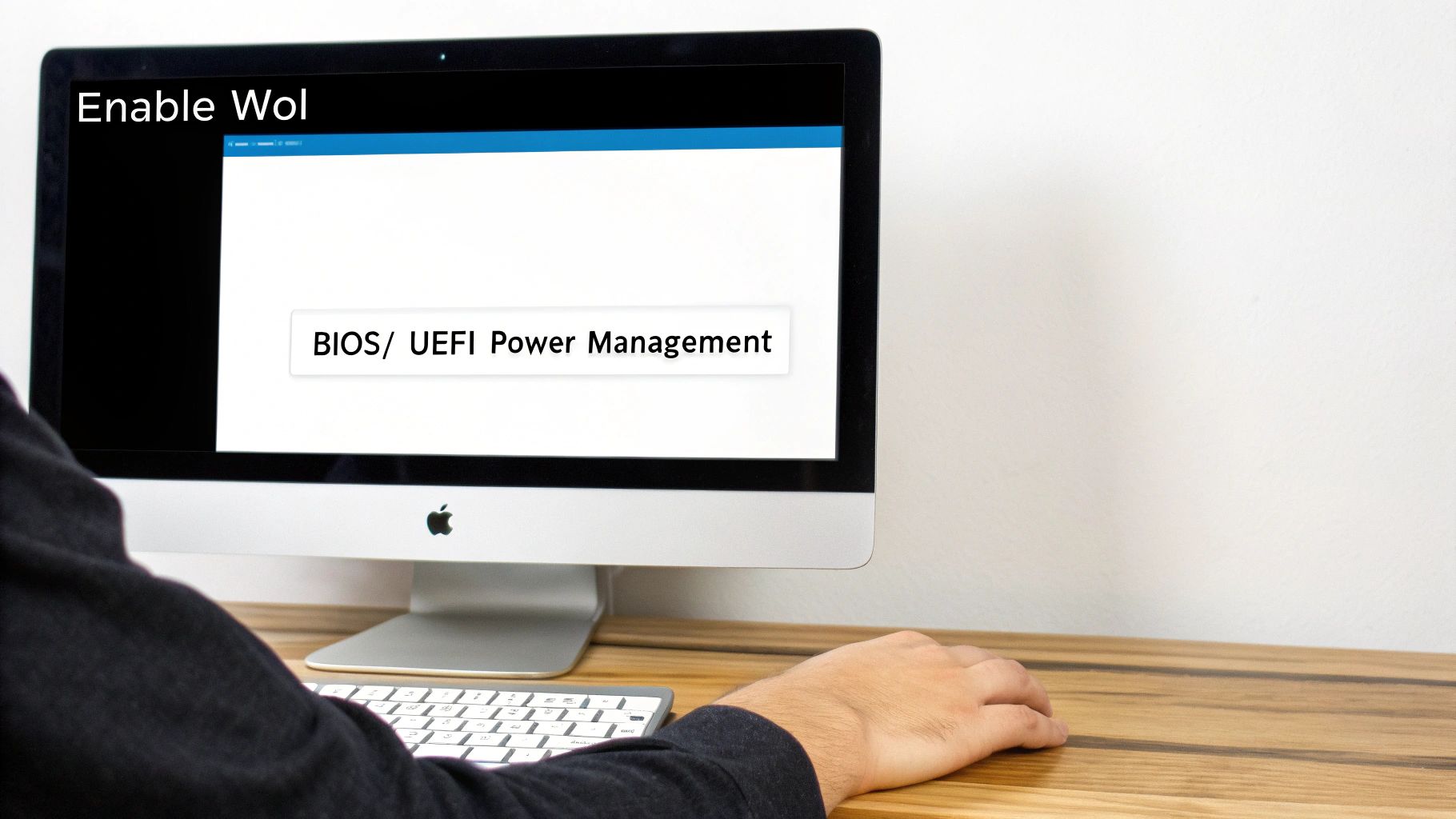
Before you can even think about sending a magic packet, you need to get your computer’s hardware on board. This is the absolute first step, and it all happens in the foundational settings of your machine—the BIOS (Basic Input/Output System) or its modern successor, UEFI (Unified Extensible Firmware Interface).
Think of the BIOS or UEFI as the master control room for your computer. It’s the low-level software that boots up your hardware before Windows or macOS even loads.
Enabling Wake-on-LAN here is like flipping the main circuit breaker for the feature. It tells your motherboard to keep a tiny bit of power flowing to the network card, even when the computer is shut down. Without that standby power, the network card is completely dead to the world and can’t listen for its wake-up call.
Honestly, this part is non-negotiable. No amount of software tweaking in your operating system will matter if the hardware itself hasn’t been given the green light.
Finding and Entering Your BIOS or UEFI
Getting into these core settings is pretty straightforward. You’ll need to restart your computer and press a specific key right as it’s starting up. The trick is to act fast—you usually only have a few seconds before the operating system logo pops up.
The magic key depends on your computer or motherboard manufacturer, but it's almost always one of these usual suspects:
- DEL (Delete): A classic choice for desktop motherboards from brands like ASUS, MSI, and Gigabyte.
- F2: Very common on laptops and desktops from makers like Dell, HP, and Acer.
- F12: This key sometimes opens a boot menu first, which then gives you an option to enter the setup.
- ESC (Escape): Another popular key on laptops for getting into startup options.
If you’re not sure, just watch the screen closely when you first power on. There’s often a message that flashes briefly, like "Press F2 to enter Setup." Once you’re in, you’ll be navigating with your keyboard (and sometimes a mouse, if you have a modern UEFI interface).
Locating the Wake On LAN Setting
The BIOS/UEFI can look a bit intimidating with all its menus and technical terms, but finding the WoL setting is just a matter of knowing where to look. It’s almost always tucked away in a section related to power management or onboard hardware.
Start poking around in menus with labels like these:
- Power Management: Your most likely bet. This is where most manufacturers place the setting.
- Advanced: A sort of catch-all category for all sorts of hardware configurations.
- Onboard Devices Configuration: This menu is for managing the built-in components like your network card.
- Network Stack Configuration: Sometimes WoL gets lumped in with other network-boot features.
Once you’re in the right area, you have to find the setting itself, which unfortunately doesn’t always have a standard name.
Key Takeaway: Every manufacturer seems to have their own favourite name for the Wake-on-LAN setting. You might have to hunt for a few different terms before you find the right one. A little patience goes a long way here.
Keep your eyes peeled for any of these common labels:
- Wake on LAN
- Power on by PCI/PCIe Device
- Resume by LAN
- Wake on PME (Power Management Event)
- Remote Wake Up
When you find it, just switch the option from Disabled to Enabled. Before you leave, make sure to save your changes and exit. This is usually done by pressing the F10 key or finding an "Exit" menu and choosing "Save Changes and Reset." Your computer will restart, and its hardware will finally be ready to listen for that magic packet.
Configuring WoL on Windows, macOS, and Linux
Alright, with the foundational work done in your computer’s BIOS or UEFI, it’s time to get the operating system on board. This is where you actually tell Windows, macOS, or Linux to pay attention and react when that magic packet comes knocking.
The end goal is identical across all three platforms, but how you get there varies a bit. Each OS has its own way of handling power states and network hardware, so let's walk through them one by one.
Setting Up WoL on Windows
On a Windows machine, getting Wake on LAN configured means taking a quick trip into the Device Manager to tweak your network adapter's properties. Think of the Device Manager as the central command hub for every piece of hardware plugged into your computer.
Getting there is easy: just right-click the Start button and pick it from the menu, or type "Device Manager" into the search bar.
- Find Your Network Adapter: Once you're in the Device Manager, look for and expand the "Network adapters" list. You’ll see all your network hardware here. You're looking for your main wired connection—it'll probably be called something like "Realtek PCIe GbE Family Controller" or "Intel(R) Ethernet Connection".
- Dig into its Properties: Right-click on your ethernet adapter and choose "Properties." A new window with a bunch of tabs will pop up.
- Tweak the Power Management: Head over to the "Power Management" tab. This is the important part. You need to make sure two specific boxes are ticked:
- "Allow this device to wake the computer." This is the master switch for WoL inside Windows.
- "Only allow a magic packet to wake the computer." This is a crucial security setting. Without it, any old network chatter could accidentally wake your PC up in the middle of the night.
- Check the Advanced Settings: Now, click on the "Advanced" tab. You'll see a long list of properties. Scroll through it to find anything related to WoL. The names can be a bit different depending on the manufacturer, but you're hunting for options like:
- "Wake on Magic Packet" (Set this to Enabled)
- "Shutdown Wake-On-Lan" (Also set to Enabled)
- "Wake on Pattern Match" (It's usually best to keep this Disabled to prevent false alarms)
Once you've got those settings locked in, click "OK" to save everything. Your Windows PC is now officially listening for its wake-up call.
Enabling WoL on macOS
For Mac users, the whole process is refreshingly simple. Apple has baked this functionality right into the main system settings, usually boiling it down to flipping a single switch.
Where you find this switch can vary slightly based on your version of macOS and whether you're on a desktop Mac or a MacBook.
On macOS, the feature you're looking for is almost always called "Wake for network access." Ticking this one box handles all the technical details behind the scenes, making it incredibly straightforward.
Here’s how to track it down and turn it on:
- Open System Settings (or System Preferences on older versions) by clicking the Apple icon in the top-left corner.
- Go to the Energy Saver section if you're on an iMac or Mac mini. For MacBook users, head into the Battery section.
- Find the option labelled "Wake for network access" or something very similar. On some newer MacBooks, you might have to click on "Options" inside the Battery settings to see it.
- Make sure that box is ticked.
And that's literally it. macOS will now keep your network card powered just enough to listen for a magic packet. It's worth mentioning that for really deep network troubleshooting on a Mac, you sometimes need to access hidden system files. If you ever find yourself needing to go that deep, knowing how to show hidden files in Finder on your Mac is a handy trick to have up your sleeve.
Configuring WoL on Linux
Linux gives you powerful, direct control over your hardware, and setting up WoL is a perfect example of this. The go-to tool for the job is ethtool, a command-line utility that lets you talk directly to your network card's driver.
Most modern Linux distros include ethtool right out of the box. If yours doesn't for some reason, you can grab it easily with your package manager (for example, sudo apt-get install ethtool on Debian or Ubuntu).
First, you need to know what your network interface is called. Run either ip a or ifconfig in your terminal. Your main ethernet port will probably have a name like eth0, eno1, or enp3s0.
Got the name? Great. Now you can check its current WoL status. Just run this command, swapping eth0 with your interface's name:
sudo ethtool eth0
In the output, look for a line saying "Supports Wake-on" and another that says "Wake-on". The first one shows you what modes the hardware supports (you're looking for a g for magic packet). The second tells you what's currently active. If "Wake-on" shows a d (for disabled), you'll need to enable it.
To turn on WoL for magic packets, use this command:
sudo ethtool -s eth0 wol g
The g flag tells the interface specifically to wake up when it sees a magic packet. There's one small catch: this setting might not stick around after a reboot. To make it permanent, you'll need to add that command to a startup script or bake it into your network manager's configuration, which can be a little different depending on your specific Linux distribution.
Enabling Wake On LAN Over the Internet
Using Wake-on-LAN inside your own house is handy, no doubt. But the real magic happens when you can fire up your computer from literally anywhere in the world. Making that leap from local convenience to global access just takes a few careful tweaks to your network's router.
Think of your router as a receptionist for your home network. By default, when a request shows up from the big, wide internet, the receptionist has no clue where to send it. A magic packet sent from outside your network will just get dropped, because the router doesn't know which specific computer it's meant for.
To fix this, we need to give the router some clear instructions. This is done through a process called port forwarding, which essentially tells your router exactly what to do when it sees an incoming Wake-on-LAN request.
Configuring Port Forwarding on Your Router
Port forwarding sets up a specific rule on your router. You're basically telling it, "Hey, anytime you receive a magic packet on this particular port, send it straight over to this one specific computer inside our network."
The whole process boils down to a few key steps:
- Assign a Static Local IP Address: Your computer's internal IP address can change every time it connects to your network. For port forwarding to work reliably, you have to lock it in by assigning it a static (unchanging) IP address in your router's settings. This makes sure the router always knows exactly where to find your PC.
- Find the Port Forwarding Section: Log in to your router's admin page and hunt for a section labelled "Port Forwarding," "Virtual Servers," or something along those lines.
- Create a New Rule: You’ll need to set up a new rule with this info:
- Port: Magic packets almost universally use UDP (User Datagram Protocol) on port 9. Some tools might use port 7 as an alternative.
- IP Address: Pop in the static local IP address you just assigned to your target computer.
- Protocol: Double-check that you've selected UDP, not TCP.
Once you save that rule, any magic packet that arrives from the internet on port 9 will be immediately funnelled to your computer's network card. If you want to get a better handle on how these devices juggle traffic, check out our guide on the differences between a modem or router.
Overcoming Dynamic Public IP Addresses
There’s one more little hurdle to clear. Just like your computer's local IP can change, your home's public IP address—the one your router uses to talk to the internet—is also probably dynamic. Your Internet Service Provider assigns it, and it can change without any warning.
The solution here is a Dynamic DNS (DDNS) service.
A DDNS service gives your ever-changing public IP address a permanent, easy-to-remember hostname (like
my-home-pc.ddns.net). A small client on your computer or router regularly updates the DDNS service with your current IP address, ensuring the hostname always points to your home network.
With this setup, you don't need to know your home's current IP address anymore. You just send the Wake-on-LAN request to your DDNS hostname, and it will always find its way home.
For more complex setups, like in a business or a sophisticated home network, you might need to configure a managed Ethernet switch. These devices give you incredibly detailed control over your network's traffic, which can be crucial for making sure magic packets get routed correctly and securely when you're enabling Wake-on-LAN over the internet.
Troubleshooting Common Wake On LAN Problems
So, you’ve meticulously followed every step, but Wake on LAN is giving you the silent treatment. Don't throw in the towel just yet. This is a surprisingly common hurdle, and the fix is usually much simpler than you'd imagine. Think of this section as your go-to checklist for methodically hunting down and fixing those pesky hiccups.
Let’s start at the most fundamental level: the hardware itself. First off, what power state is your computer in? WoL plays best with sleep (S3) or hibernate (S4) modes. Getting it to work from a complete shutdown (S5) can be a bit of a gamble and depends heavily on your specific motherboard and BIOS/UEFI settings. A great little clue is the link light on your Ethernet port; if it’s still blinking away when the PC is “off,” that’s a fantastic sign your network card is getting the standby power it needs.
Verifying Your Configuration Details
Alright, hardware seems okay? Let's look at the data. The magic packet is incredibly specific, and its success hinges entirely on having the correct MAC address for the target machine. A single typo—mistaking a '0' for an 'O', or a 'B' for an '8'—and the whole thing fails. Always, always double-check this by copying and pasting the address directly from your system’s network settings.
Another common roadblock is an overzealous software firewall. Your Windows Defender, macOS firewall, or any third-party security suite might see that incoming magic packet as suspicious, unsolicited traffic and just block it flat out. A quick way to test this theory is to temporarily disable your firewall for a local network test. If it suddenly works, you've found your culprit.
Key Insight: Most Wake on LAN failures aren't due to broken hardware but simple configuration mistakes. A methodical approach, starting with the physical connections and working your way up to software, will almost always uncover the problem.
Solving Internet and Router Issues
When you’re trying to use Wake on LAN over the internet, things get a little more complex, adding a few more places where things can go wrong. The most frequent offender here is a wonky port forwarding rule on your router. You need to be certain you're forwarding UDP traffic (not TCP) on port 9 (or 7) and pointing it directly to your target computer’s static local IP address.
This flow chart gives a good visual of the journey a wake-up signal takes across the internet.
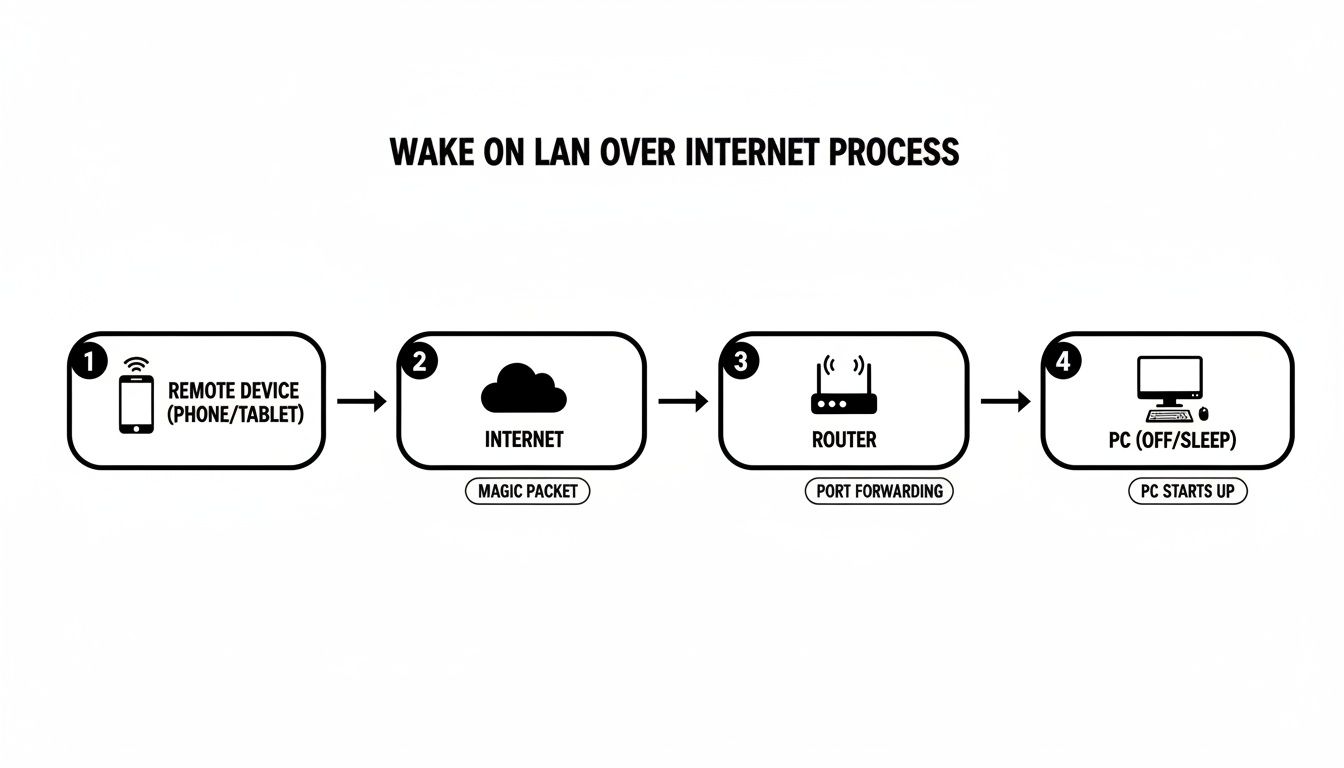
As you can see, the signal has to successfully get from your remote device, through the internet, and then be correctly funnelled by your router to the one specific PC you want to wake up.
One last critical thing to check is your Dynamic DNS (DDNS) setup. If your home's public IP address has changed but your DDNS service hasn't updated its record yet, your magic packet is being sent to an old, dead address. Just log into your DDNS provider's dashboard and confirm that your hostname is pointing to your current public IP. By working through these common issues one by one, you’ll isolate the problem and get your remote wake-up system humming along perfectly.
Frequently Asked Questions About Wake On LAN
As you start using Wake on LAN, you'll naturally run into a few questions. It’s a fantastic feature, but it has its quirks. Here are some quick, clear answers to the most common things people wonder about after getting everything set up.
Can Wake On LAN Work Over Wi-Fi?
Technically, yes, but you’ll be entering a world of pain. The wireless version is often called Wake on Wireless LAN (WoWLAN), but getting it to work reliably is another story entirely. It's notoriously difficult to configure.
The computer's wireless card has to support it, and more importantly, the wireless router needs to cooperate by broadcasting the magic packets correctly—something many just don't do. For dependability and your own sanity, a wired Ethernet connection is the way to go.
Does WoL Gulp Down Electricity?
Not at all. It does use a tiny bit of power, but we're talking about a minuscule amount. For WoL to work, the network interface card (NIC) has to stay awake in a low-power mode, just listening for that magic packet.
This standby mode typically draws less than a single watt. That's a tiny fraction of what a computer uses even in sleep mode, let alone when it's idling. The energy you save by keeping the PC fully powered down far outweighs the tiny trickle of power the NIC sips on.
A computer in a full shutdown state (S5) with WoL enabled uses a fraction of the power of a machine in sleep mode (S3), making it an excellent energy-saving tool for devices that need on-demand access.
Is Wake On LAN Secure?
This is where you need to be smart. WoL itself is pretty basic; it has zero built-in security or authentication. If someone is on your local network and they know your computer’s MAC address, they can send a magic packet and wake it up.
On a secure home network, the risk is incredibly low. But in a larger office or a less trusted environment, it's something to consider. This is why good security habits are non-negotiable. To get a better handle on protecting your online activities, you might find our guide on choosing the best VPN for your needs helpful. By pairing WoL with strong login passwords and a secure network, you can enjoy the convenience without sacrificing your peace of mind.


Responses