Screenshot On Samsung Tablet Made Easy

If you need to quickly capture what's on your Samsung tablet's screen, the classic two-button method is your most reliable friend. It’s the go-to technique for taking a screenshot, working seamlessly across almost every Galaxy Tab model out there, from the budget-friendly A series to the high-end S models.
Mastering The Two-Button Screenshot On Samsung Tablets
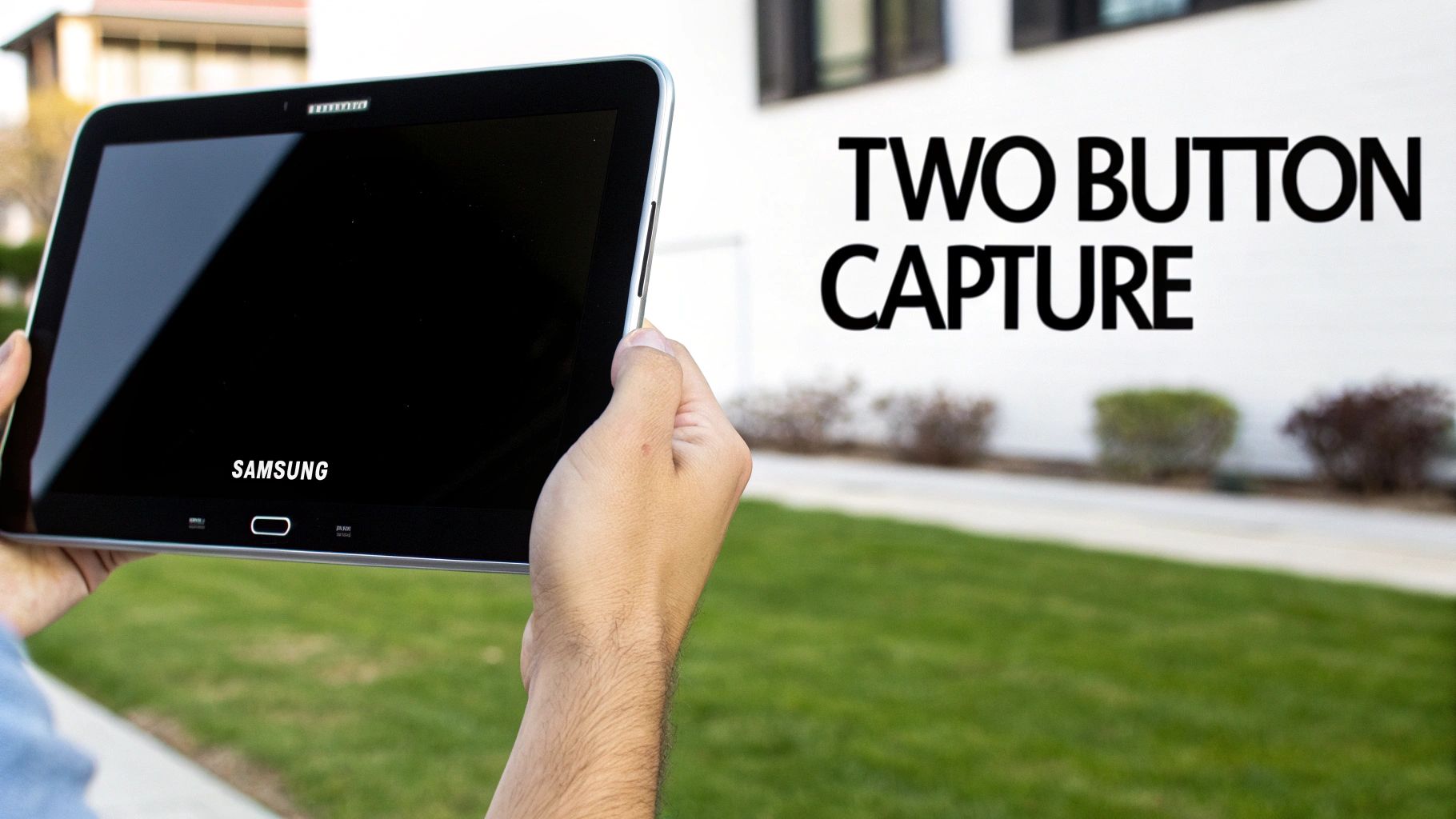
Think of the hardware button combo as the universal language for screenshots on Android devices, and Samsung tablets speak it fluently. This method is incredibly dependable because it doesn't require any special setup or permissions. It’s perfect for those fleeting moments—like grabbing an order confirmation or saving a crucial step in a recipe before the page refreshes.
Finding The Right Buttons
First things first, you need to locate the Power and Volume Down buttons. On most Samsung tablets, you'll find these along the top or right-hand edge when you're holding the device vertically. The power button is usually a single, smaller button, while the volume control is a longer rocker. You're aiming for the lower half of that volume rocker.
To actually take the screenshot, just press both the Power and Volume Down buttons at the exact same time. The trick is to make it a quick, simultaneous press and release. If you hold them down for too long, you might accidentally trigger the power-off menu or just change the volume. A brief, sharp press is all it takes.
Pro Tip: Try placing your index finger over the Volume Down button and your middle finger over the Power button. I find this grip makes it much easier to press both at once without any fumbling.
Why This Method Is A Fan Favourite
The two-button method has remained the most popular way to take a screenshot for a few solid reasons:
- Universal Compatibility: It works on virtually every Samsung tablet, regardless of its age or the version of Android it's running.
- No Setup Needed: Unlike gestures or voice commands that you might have to enable, this feature works right out of the box.
- Speed and Reliability: It’s simply the fastest way to capture your screen without digging through menus or settings.
This method is so deeply embedded in the Android experience that it's become second nature for millions of users. Given Samsung's huge footprint in the Dutch tablet market—commanding around 32.9% of the mobile and tablet vendor share—it’s a feature that roughly one in three tablet users in the Netherlands is familiar with.
For a broader look at capturing your screen across various devices, this guide on how to screenshot on an Android tablet is a fantastic resource.
Screenshot Methods for Different Samsung Tablet Models
While the two-button method is nearly universal, it’s helpful to have a quick reference for some of the most popular models. This table breaks down the primary and alternative methods you can expect to find.
| Samsung Tablet Series | Primary Method | Alternative Methods |
|---|---|---|
| Galaxy Tab S Series (S9, S8, S7) | Power + Volume Down | Palm Swipe, S Pen, Bixby |
| Galaxy Tab A Series (A9, A8, A7) | Power + Volume Down | Palm Swipe, Google Assistant |
| Galaxy Tab FE Series (S9 FE, S7 FE) | Power + Volume Down | Palm Swipe, S Pen |
| Older Models (Tab S6, Tab A 10.1) | Power + Volume Down | Palm Swipe |
As you can see, no matter which model you're using, the hardware button combination remains the most consistent and reliable starting point.
Go Hands-Free With Gestures and Voice Commands
Sometimes, pressing a combination of physical buttons just isn't practical. Samsung gets this, which is why their tablets are packed with smarter, hands-free ways to capture what's on your screen.
Think about it: you're in the kitchen, following a recipe on your tablet, and your hands are covered in flour. Or maybe you're in the middle of a delicate craft project and can't possibly let go. In moments like these, gesture and voice commands are absolute lifesavers.
Use Palm Swipe To Capture
One of the slickest hands-free features is Palm swipe to capture. Once you get the hang of it, you can take a screenshot just by gliding the edge of your hand across the screen. It's a smooth, quick action that feels surprisingly natural.
First, you'll need to make sure the feature is actually turned on. It usually is by default, but it's worth checking.
- Head over to Settings > Advanced features.
- Tap into Motions and gestures.
- Look for the Palm swipe to capture toggle and flick it on if it isn't already.
With that enabled, simply place the side of your hand—from your little finger down to your wrist—on one edge of the screen and swipe it horizontally to the other side. A little flash animation will confirm the screenshot was taken. It might take a try or two to nail the motion perfectly, but once you do, you'll wonder how you ever lived without it.
This gesture is fantastic for those times when you need to capture something quickly without breaking your concentration. You can stay focused on your task instead of fumbling with buttons.
Voice-Activated Screenshots
For a truly hands-off approach, you can just tell your tablet what to do. Samsung tablets come with Bixby and Google Assistant built-in, and both are more than capable of handling the task for you. This is perfect if your tablet is propped up on a stand just out of reach.
You'll need to have your preferred voice assistant set up and ready to listen for your commands. Once that's sorted, all you have to do is say the magic words:
- "Hey Bixby, take a screenshot."
- "Hey Google, take a screenshot."
The assistant will acknowledge your command and snap a picture of your screen instantly. This is the ultimate solution for capturing information when your hands are completely tied up.
While this guide is all about grabbing still images, there are times you need to capture motion or an entire process. For a deeper dive into that, you can learn how to screen record with sound on any device. Both gestures and voice commands make managing screen captures a breeze, adding another layer of versatility to your tablet.
Advanced Smart Capture And S Pen Techniques
Taking a basic screenshot on your Samsung tablet is just scratching the surface. The real magic happens when you dive into the advanced tools Samsung has baked right into the software. These features turn a simple screen grab into a powerful workflow, especially if you're a power user who needs more than a static picture.
Think about it: have you ever tried to save a long chat with a friend or a whole online article to read later? A normal screenshot only gets a tiny piece, forcing you to snap several images and try to stitch them together. That's exactly the problem Smart Capture was designed to solve.
Mastering Scroll Capture For Long Content
The second you take a screenshot on your Samsung tablet, a small toolbar pops up at the bottom of the screen. Keep an eye out for the Scroll Capture button—it looks like a little box with a downward-pointing arrow.
Give that button a tap. Your tablet will instantly scroll down and add the next section of the screen to your original capture. You can keep tapping it to grab an entire webpage, a long email, or even your whole social media feed. When you're done, it's all saved as one clean, continuous image. No more juggling a dozen separate files and trying to remember the right order.
Beyond the basics, Samsung also offers some slick hands-free options to make the whole process even smoother.
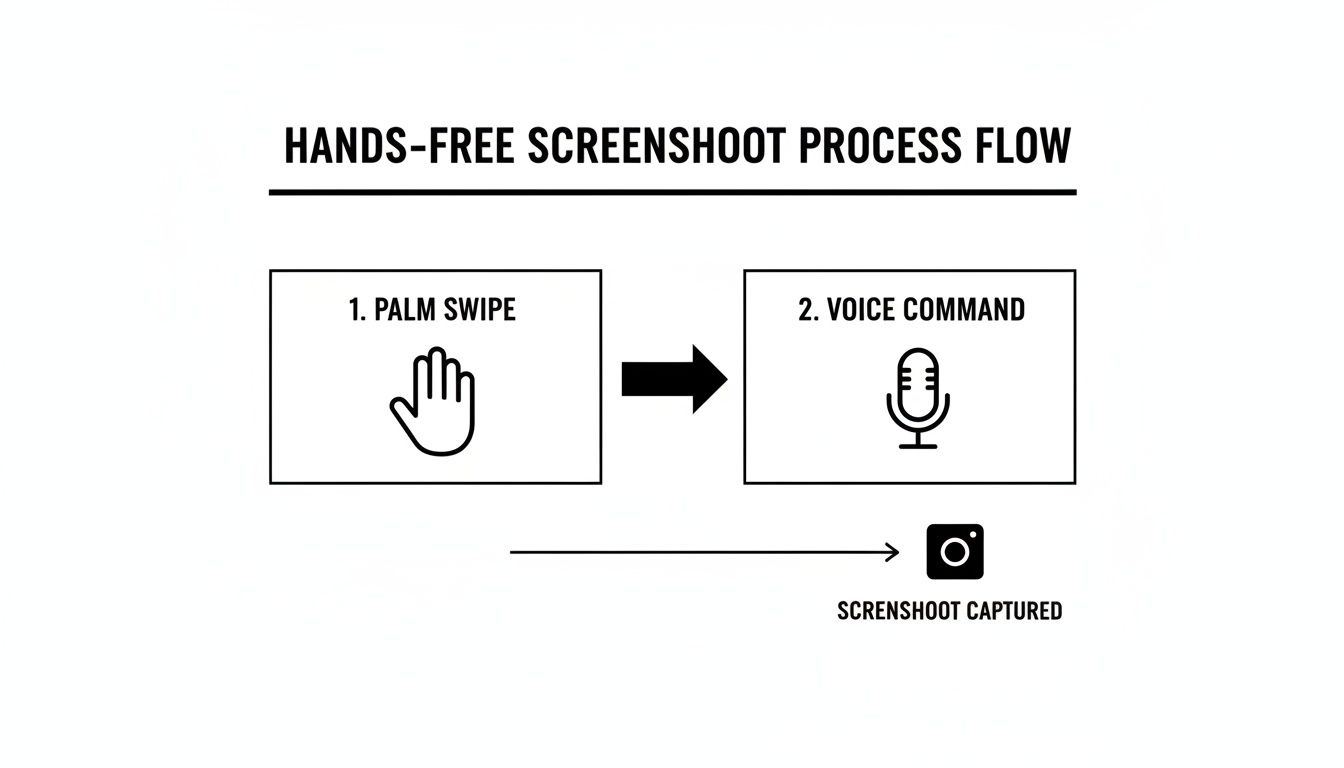
This simple flow chart shows how gestures like Palm Swipe or even just your voice can give you convenient, touch-free ways to capture what's on your screen.
Unlocking S Pen Screenshot Superpowers
If your Samsung tablet came with an S Pen, you’re in for a treat. The Air command menu unlocks a suite of incredibly precise capture tools that go far beyond what you can do with your fingers. The S Pen isn't just for drawing; it's a phenomenal tool for getting the perfect screenshot.
Here are the two standouts:
- Screen Write: This feature is brilliant. It instantly snaps a screenshot of whatever is on your screen and immediately opens it up for editing. You can circle key details on a map for a friend, add quick notes to a document, or highlight important text before you save or share it. It's fantastic for giving quick visual feedback.
- Smart Select: This is your go-to for surgical precision. Forget capturing the whole screen; with Smart Select, you can draw a rectangle, circle, or even a free-form lasso around the exact piece of information you want. It completely ignores all the surrounding clutter. It can even pull text out of the image for you or pin the selection to your screen as a handy reference.
The real-world value of these features is clear, especially in professional and educational settings. With business tablet usage in the Netherlands hitting around 31% of locations, tools that boost productivity are no longer just nice to have—they're essential. The Dutch tablet market, which is projected to generate roughly US$274.73 million in revenue in 2025, is full of users who rely on these advanced functions every day. You can read more about the Dutch tablet market's growth and trends on Statista.com.
Samsung's advanced capture tools each have their own strengths. This table breaks down which feature to use and when.
Comparing Advanced Screenshot Features
| Feature | Best For | How to Access |
|---|---|---|
| Scroll Capture | Saving long webpages, articles, or chat histories as a single image. | Tap the downward arrow icon on the toolbar after taking a screenshot. |
| Screen Write | Immediately annotating, drawing on, or highlighting a screenshot. | Select from the S Pen's Air command menu. |
| Smart Select | Precisely cropping a specific area or creating GIFs from videos. | Select from the S Pen's Air command menu. |
Each of these tools offers a unique way to make your screenshots more useful, turning a simple capture into a productive part of your workflow.
Of course, once you start annotating and collecting all this information, you need a good system to keep it all organised. If you're looking to really streamline how you manage your notes and captures, it’s worth checking out some of the top Evernote alternatives and other note-taking apps to find one that fits your style.
Edit And Share Screenshots
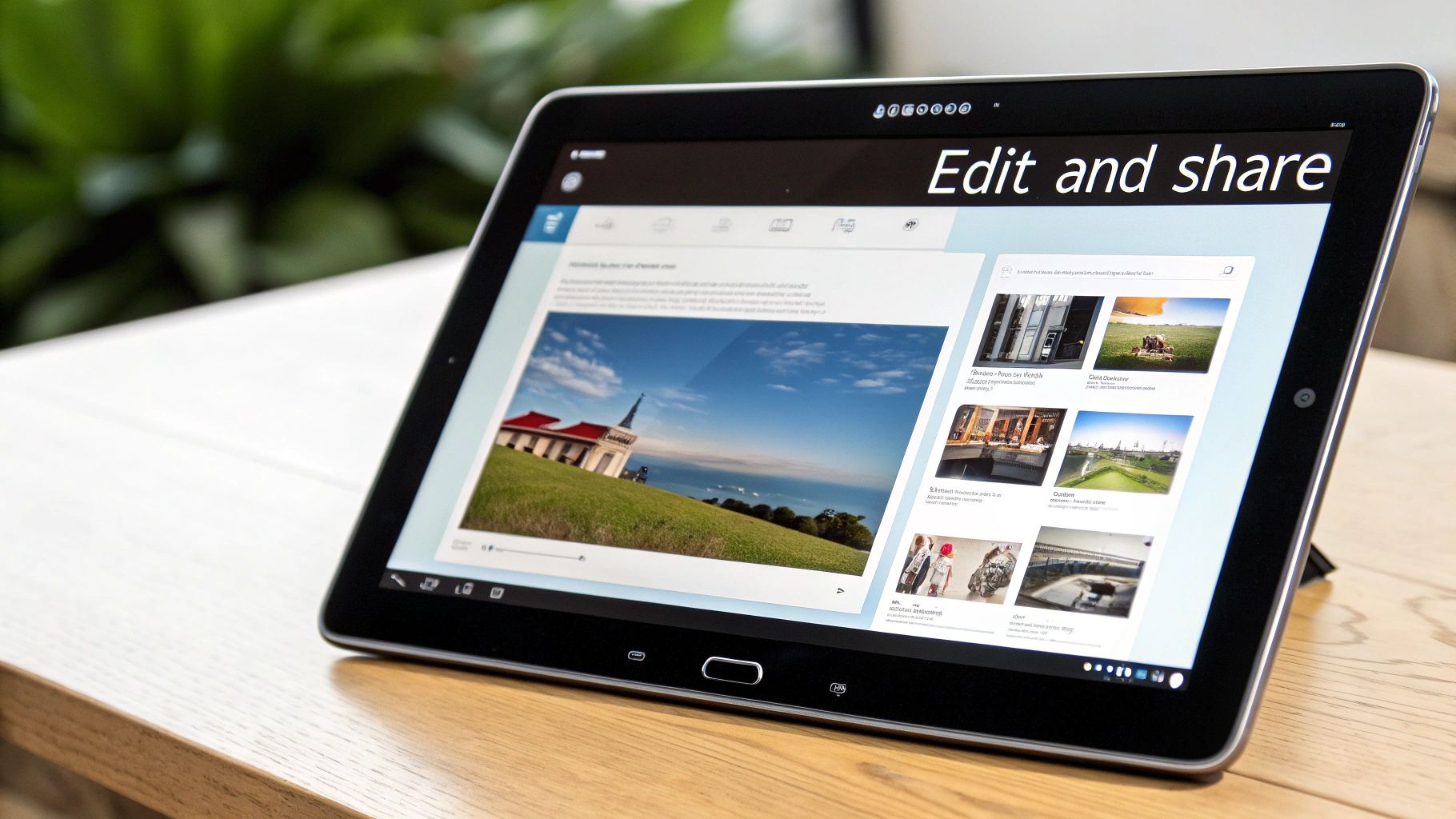
Grabbing a screenshot on a Samsung tablet is just the start. The real magic happens with what you do next—whether that's marking up a crucial detail for a colleague, blacking out sensitive info, or just sending a funny meme to a friend. Thankfully, Samsung has made this whole process incredibly seamless, getting you from capture to share in just a couple of taps.
Every screenshot you take lands safely in your tablet’s storage. You can find them all neatly filed away in the Gallery app. Just pop open the app, and you’ll spot a dedicated album called "Screenshots." No more digging through your camera roll to find that one capture from last week.
Making Quick Edits Like A Pro
Once you’ve opened a screenshot, look for the little pencil icon at the bottom of your screen. Tapping this launches Samsung’s surprisingly powerful built-in photo editor. It’s got all the tools you need for quick adjustments without having to download a separate app. It’s absolutely perfect for those on-the-fly tweaks.
Cropping is probably the most common edit you'll make. Say you've screenshotted an online order confirmation but only want to share what you bought, not your home address. The crop tool makes it a breeze to just drag the corners and isolate the exact section you need, keeping your personal details private.
The drawing and markup tools are just as essential. This is where you can really add context and make your screenshot crystal clear.
- Highlighting: Use the highlighter to circle a key figure in a financial report.
- Pointing: Draw a quick arrow to show a family member exactly which button to press in a software tutorial.
- Adding Notes: Scribble a quick reminder or a "look at this!" note directly onto the image.
Mastering these simple tools transforms a static image into a clear piece of communication. It saves a ton of back-and-forth and prevents any confusion down the line.
Advanced Editing And Sharing Options
For those times when the built-in editor doesn't quite cut it, you've still got plenty of options. There's a whole world of powerful photo editors out there if you need features like advanced layering or complex filters. Exploring some of the top free and paid photo editing alternatives can really take your image editing to the next level.
When your screenshot is polished and ready to send, sharing is just a tap away. The Share icon—usually three dots connected in a sort of triangle—brings up the standard Android share sheet. This menu is smart; it populates with your most frequently used apps and contacts, making the process incredibly fast and intuitive.
Whether you need to drop a marked-up diagram into a team Slack channel, email a receipt to your accounts department, or post a funny find on social media, the share sheet handles it all. This smooth integration is what makes the whole screenshot workflow on a Samsung tablet so efficient, closing the loop from capture to delivery without any friction.
Fix Common Screenshot Issues
It’s always frustrating when you hit the buttons to grab a screenshot on a Samsung tablet, and… nothing happens. Whether the buttons don’t seem to respond or a gesture just won’t register, the good news is that most of these issues have a pretty simple fix. It usually just takes a little bit of troubleshooting to get to the bottom of it.
More often than not, the problem with the classic button combo is all in the timing. You need to press the Power and Volume Down buttons at the exact same moment and then let go quickly. If you hold them down for even a second too long, you’ll likely see the power-off menu instead. A bulky or poorly fitting case can also be the culprit, physically blocking the buttons from being fully pressed down. Try popping the case off and see if that does the trick.
Why Some Apps Block Screenshots
Have you ever tried to screenshot something and instead got a pop-up saying, "Can't take screenshot due to security policy"? This isn't a bug in your tablet; it's actually an intentional feature.
Certain apps, especially for banking, streaming services like Netflix, or anything handling protected content, will deliberately block the screenshot function. This is a security measure designed to protect sensitive data like your account numbers or to prevent copyright infringement.
While you might find some workarounds online involving third-party apps or connecting your tablet to a computer, they’re often complicated and don't always work. In most situations, the app developer has locked this feature down for a very good reason.
Troubleshooting Gesture and Voice Commands
If your Palm swipe gesture isn’t working, the first thing to do is dive into your settings and make sure it's actually turned on. You’ll find it under Settings > Advanced features > Motions and gestures.
Also, check your technique. Your swiping motion needs to cover the whole screen, moving from one edge completely to the other with the side of your hand. Sometimes, a thick screen protector can mess with the sensor's sensitivity and interfere with gesture recognition, so that's something else to keep in mind.
Key Takeaway: Unresponsive screenshot features are rarely a sign of a major hardware problem. More often than not, it's a minor settings issue, a protective case getting in the way, or a security restriction within an app.
The rich functionality on Samsung tablets is a direct response to high user expectations in technologically advanced regions. To give you an idea, the Dutch consumer electronics market was valued at a massive €10.1 billion back in 2020. With Samsung holding a huge slice of that market, millions of users in the Netherlands rely on these features daily for both work and school. You can dive deeper into consumer tech trends in the Dutch market on aqipa.com.
On a similar note, if your saved screenshots seem to have vanished into thin air, they might just be hiding in an unexpected folder. They almost always land in the "Screenshots" album in your Gallery app, but certain apps might save them somewhere else. If you’re having a tough time tracking down files, it can be useful to learn how to show hidden files in Finder on a Mac, as the same basic principles can help you find misplaced files on any device.
Common Questions Answered
Even with all the different ways to grab a screenshot, you might still hit a few snags or have specific questions. Let's run through some of the most common ones I hear and get you some quick, clear answers.
Can I Screenshot The Lock Screen?
Yes, you absolutely can. The classic two-button trick—pressing Power + Volume Down at the same time—works just as well when your tablet is locked.
This is brilliant for capturing a notification you just saw or saving a custom wallpaper you really like before it disappears. The screenshot just saves to your gallery like any other.
Why Won’t Some Apps Let Me Take A Screenshot?
Ever seen that "Cannot take screenshot due to security policy" message? It’s not a bug. It's a security feature developers build right into their apps on purpose. You'll usually see this with:
- Banking and Finance Apps: They block screenshots to stop sensitive info like your account balance or personal details from being captured.
- Streaming Services: Apps like Netflix or Disney+ do this to prevent copyright infringement of their shows and movies.
- Secure Messaging Apps: Some chat apps focused on privacy disable screenshots to keep conversations completely confidential.
There isn't really a simple way around this, as it's a deliberate security measure baked into the app itself.
It's worth remembering these restrictions are there for your own protection and to respect copyright laws. It can feel like a nuisance, but that extra layer of security is often necessary.
How Do I Change The Screenshot File Format?
By default, Samsung tablets save screenshots as either JPG or PNG files. It's easy to switch between them depending on what you need. JPG files, for instance, are smaller and perfect for sharing, while PNG files offer higher quality, which is better for capturing detailed graphics or text without losing clarity.
To make the change, just head over to Settings > Advanced features > Screenshots and screen recorder. In that menu, you'll spot the option to pick your preferred image format. It’s a simple toggle that can help you manage your storage space or hang on to image quality, depending on what matters more to you.
Can I Adjust The Screenshot Resolution?
No, you can't directly change the resolution of the screenshot itself. The image you capture will always match the native screen resolution of your Samsung tablet.
If you need a smaller image file, your best option is to use the built-in editor right after taking the screenshot. You can crop the image down, or when you go to share it, many apps will offer to resize it to a lower resolution. This shrinks the file size, making it much quicker to send.
At People & Media B.V., we believe in providing clear, practical knowledge to help you make the most of your technology. Explore our platform for more guides, courses, and insights designed for lifelong learners. Keep learning with us at https://www.peopleandmedia.com.


Responses